You can record a customer payment against any invoice in Deskloc Flow from two places: from the Sales → Tax Invoices list (open the invoice's action menu and click Record Payment), or from the Sales → Payments Received page using the + Record Payment button in the top-right. Both paths open the same form — enter the amount, pick the payment mode, set the date, attach a receipt if you have one, and save. The invoice status updates automatically: balance fully cleared → Paid, partial amount → Partially Paid.
This article walks through both entry points, the partial-payment workflow, how multi-currency invoices handle payments (USD payments on USD invoices are stored with both the original USD amount and the AED equivalent for VAT return reporting), and the Payments Received page that gives you a single ledger view of every payment recorded across all customers.
TL;DR
- Two entry points: Sales → Tax Invoices → [invoice action menu] → Record Payment, OR Sales → Payments Received → + Record Payment
- Payment Mode options: Bank Transfer, Cash, Cheque, Online Transfer, Credit Card, Other
- Partial payments are first-class — record less than the balance and the invoice status becomes Partially Paid (not "Paid"). Record more payments later until the invoice is fully cleared.
- Multi-currency — the customer pays in the invoice's currency. For non-AED invoices, both the original currency amount and the AED equivalent are stored automatically using the live exchange rate at payment time.
- Receipt upload is optional — attach a PDF, image, or scan of the bank confirmation, cheque, or receipt voucher to the payment record.
- Payments Received is your AR ledger — every payment across every customer in one list, with date, invoice number, customer, method, and amount.
- Payment voucher PDF — every recorded payment has a Payment Details view with Download PDF and Print options for sending the customer a receipt.
Step 1: Open Record Payment from one of two places
Deskloc Flow gives you two paths into Record Payment depending on how you work.
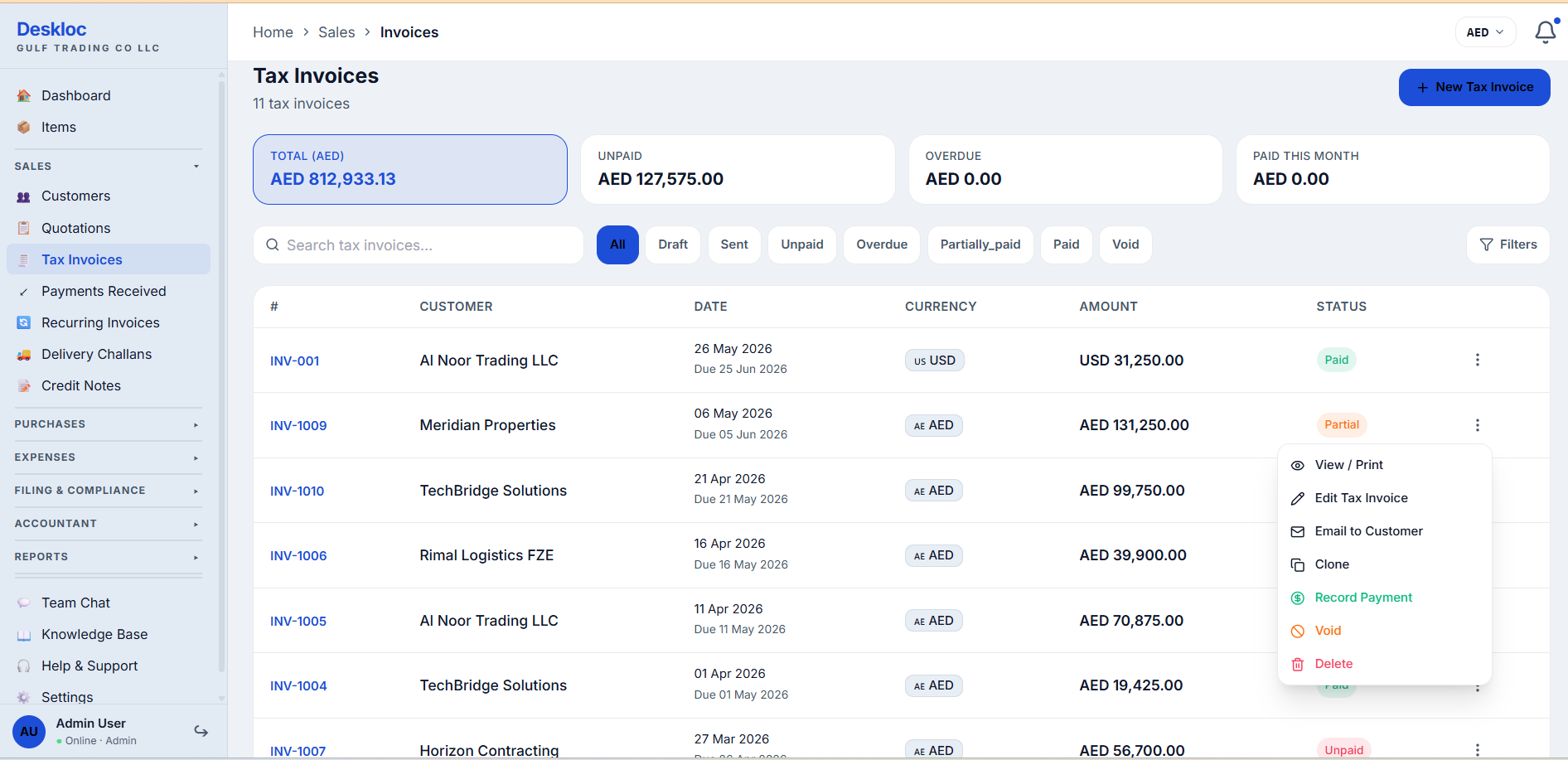
Path A: From the invoice itself. Go to Sales → Tax Invoices, find the invoice, and click the action menu (three dots) on its row. Select Record Payment.
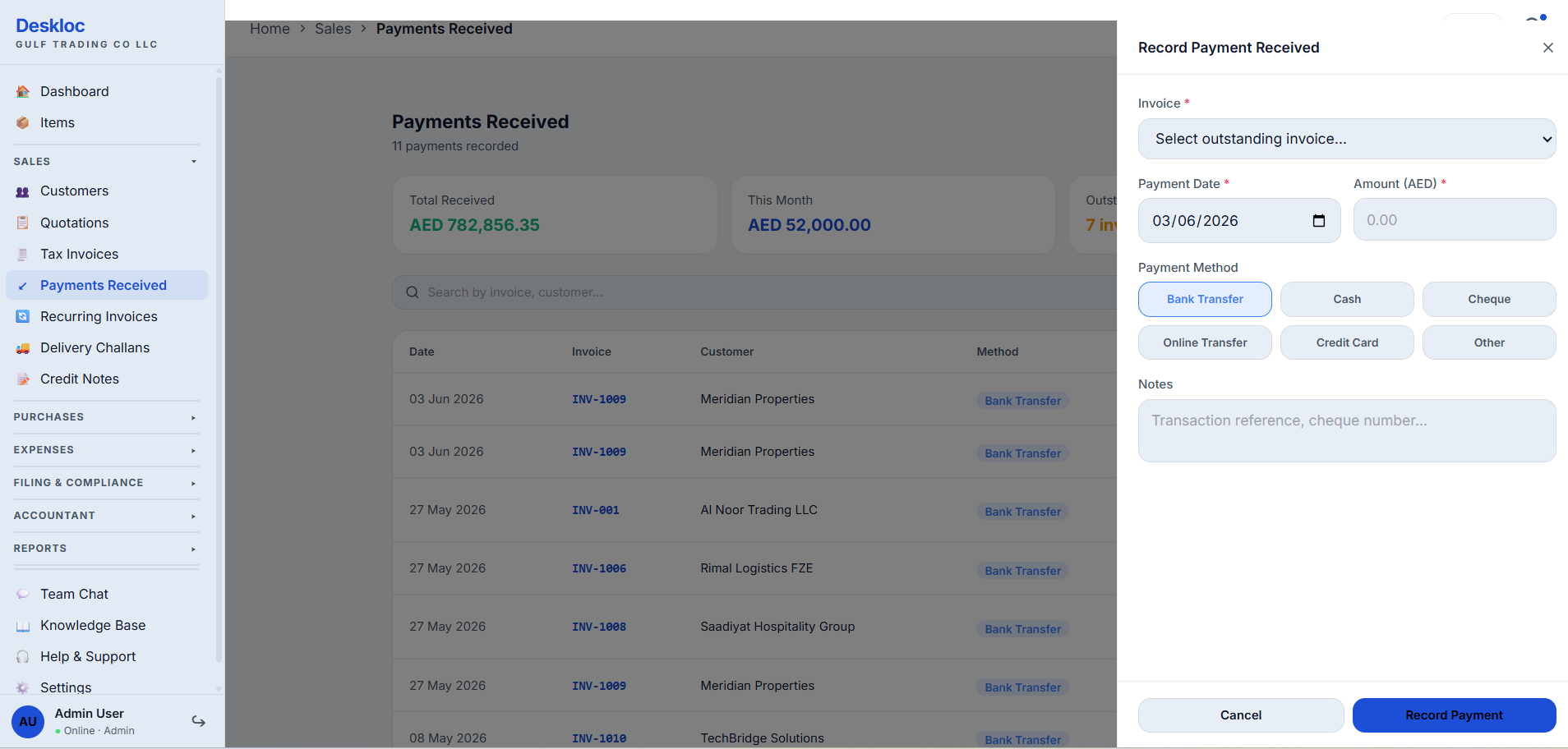
Path B: From the Payments Received page. Go to Sales → Payments Received and click the blue + Record Payment button in the top-right. This opens a drawer where you first pick the invoice, then enter payment details.
Quick rule of thumb:
- Working through unpaid invoices one at a time (reviewing AR, chasing a specific customer)? → Path A is faster — you're already looking at the invoice.
- Entering multiple payments after a bank statement reconciliation? → Path B is faster — stay on one page, log payments in sequence.
Both paths open the same form with the same fields. Pick whichever matches what you're doing.
Step 2: The Record Payment form — fields explained
Whichever path you take, the form shows the same fields.
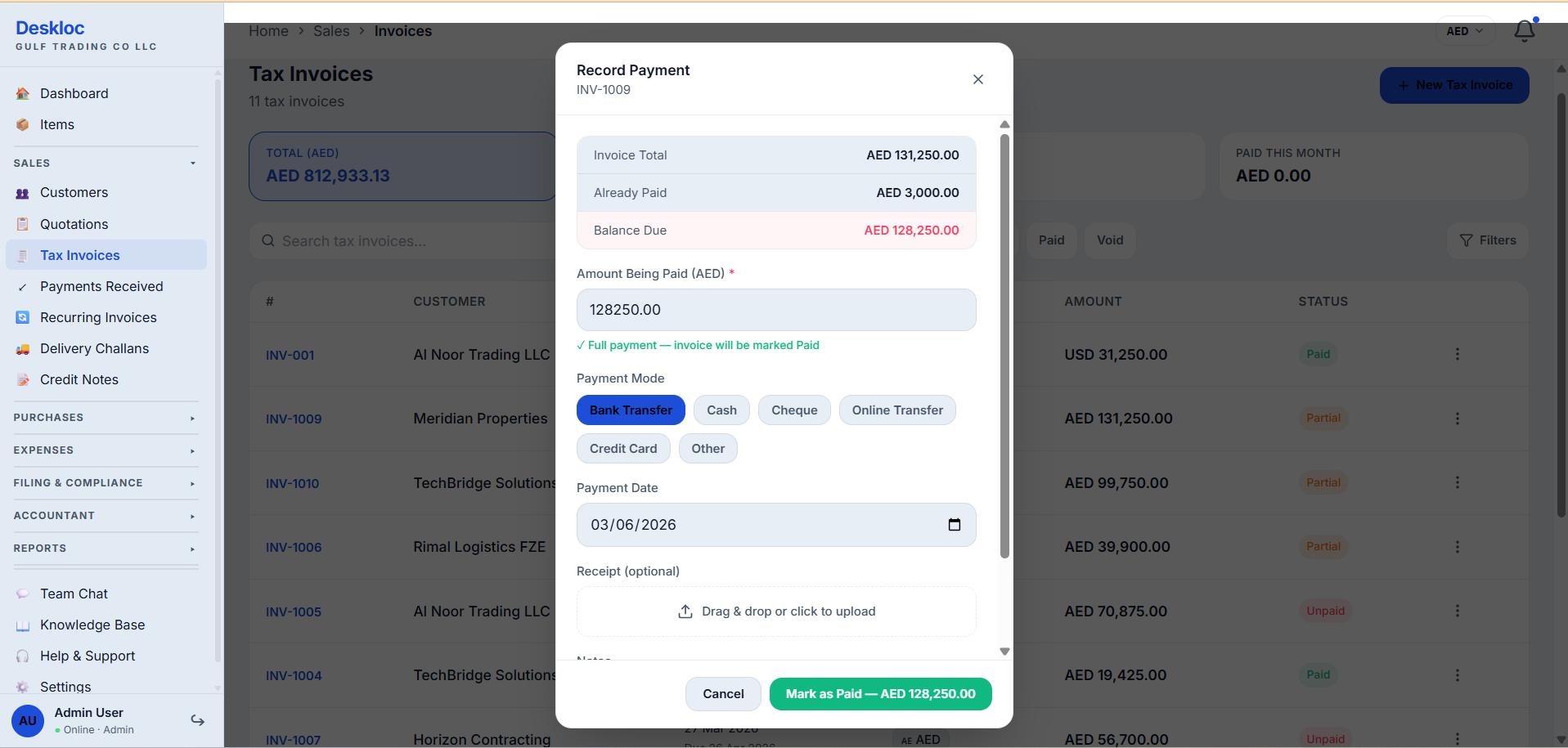
At the top, three display-only fields tell you exactly where you stand:
- Invoice Total — the full amount of the invoice
- Already Paid — how much has been received against this invoice so far (across previous payment entries)
- Balance Due — what's still outstanding (Invoice Total minus Already Paid)
Below that, fill in:
Amount Being Paid — defaults to the balance due (the assumption is full payment). If the customer paid less, change this number. The form tells you in real time whether the amount will mark the invoice as Paid or Partially Paid — a green confirmation line appears under the amount field when you're recording a full clearance.
Payment Mode — pick one:
- Bank Transfer — most common for B2B in the UAE. Use for any direct transfer to your business bank account, whether local UAE bank, GCC bank, or international wire.
- Cash — physical cash receipt. Always upload the signed cash receipt as the Receipt attachment.
- Cheque — bank cheque, including post-dated cheques. Recommended: upload a scan of the cheque to the Receipt field.
- Online Transfer — online banking transfers, mobile payment apps (some businesses prefer to separate this from traditional Bank Transfer for reconciliation).
- Credit Card — card payments, whether processed via a POS terminal, online gateway, or virtual terminal.
- Other — anything that doesn't fit the above (e.g. set-off against supplier balance, write-off as bad debt with proper accounting treatment).
Payment Date — defaults to today. This is the date the funds actually arrived in your account (cleared cheque, settled card transaction, completed transfer) — not the date you're entering the payment. Setting this accurately matters for AR aging reports and VAT cash-flow analysis.
Receipt (optional) — drag and drop a file or click to upload. Accepts PDFs and images. We recommend always attaching something: the bank transfer confirmation, the cheque image, the card receipt, or a scan of the cash receipt voucher. Two minutes at payment time saves an hour during audit.
Notes — free-text field for internal reference. Useful for: bank reference numbers, the name of the staff member who received cash, special arrangements with the customer.
Click the action button at the bottom of the form to save.
Step 3: Recording a full payment
A full payment is when the Amount Being Paid equals the Balance Due. The form confirms this with a green message: Full payment — invoice will be marked Paid.
When you save, the invoice status changes to Paid and the payment appears in the Payments Received ledger.
That's the simple case. Most invoices end up here eventually — sometimes in a single payment, sometimes after multiple partial payments.
Step 4: Recording a partial payment
A partial payment is when the customer pays less than the full balance due. This is more common in UAE B2B than first-time users expect — split payments for large invoices, advance / milestone arrangements, and partial settlements during disputes are all normal.
To record a partial payment, change the Amount Being Paid to whatever the customer actually paid. Save.
The invoice status changes to Partially Paid, visible in the Tax Invoices list:
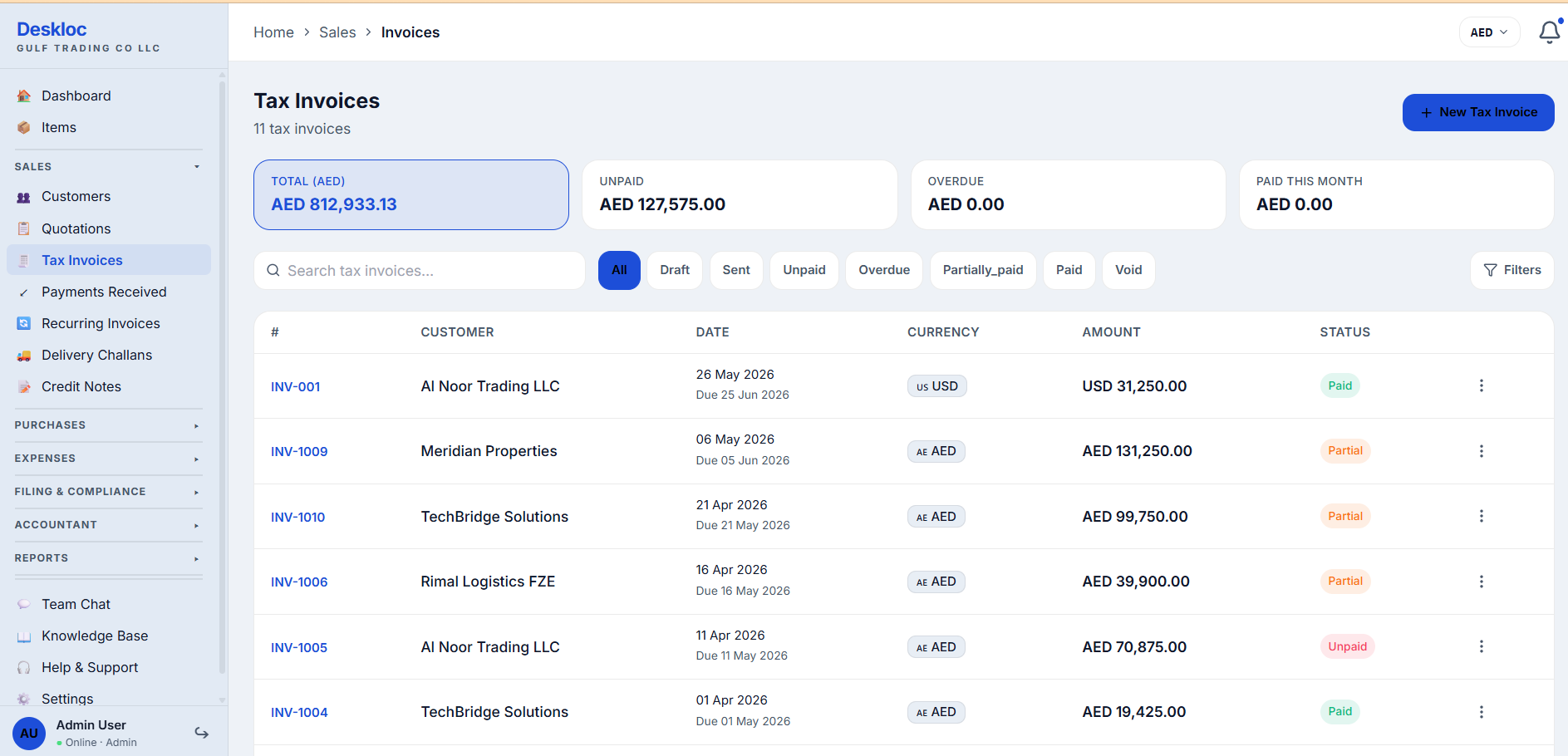
You can record any number of partial payments against one invoice. Each one shows separately in the Payments Received ledger, and the invoice's Already Paid total grows with each entry. When the cumulative payments equal the invoice total, the invoice automatically flips to Paid.
Worked example: AED 10,000 invoice, customer pays AED 3,000 on Day 1, AED 4,000 on Day 15, AED 3,000 on Day 30. After payment 1: status = Partially Paid (Already Paid 3,000, Balance Due 7,000). After payment 2: still Partially Paid (Already Paid 7,000, Balance Due 3,000). After payment 3: status = Paid.
Step 5: Multi-currency payments
UAE businesses regularly invoice in USD, EUR, and other currencies — for international clients, GCC neighbours, or commodity exports priced in USD. Deskloc Flow's payment handling for these is opinionated and deliberate.
The customer pays in the invoice's currency. If the invoice is in USD, the payment is in USD. If the invoice is in EUR, payment is in EUR. There's no currency conversion at payment time on the customer side — they pay what the invoice says.
For non-AED invoices, the payment is stored in both currencies. When you record a USD payment on a USD invoice, Deskloc Flow stores the original USD amount and uses the live exchange rate at payment time to also store the AED equivalent. Both numbers are saved permanently against the payment record.
You can see this in the Payments Received ledger:
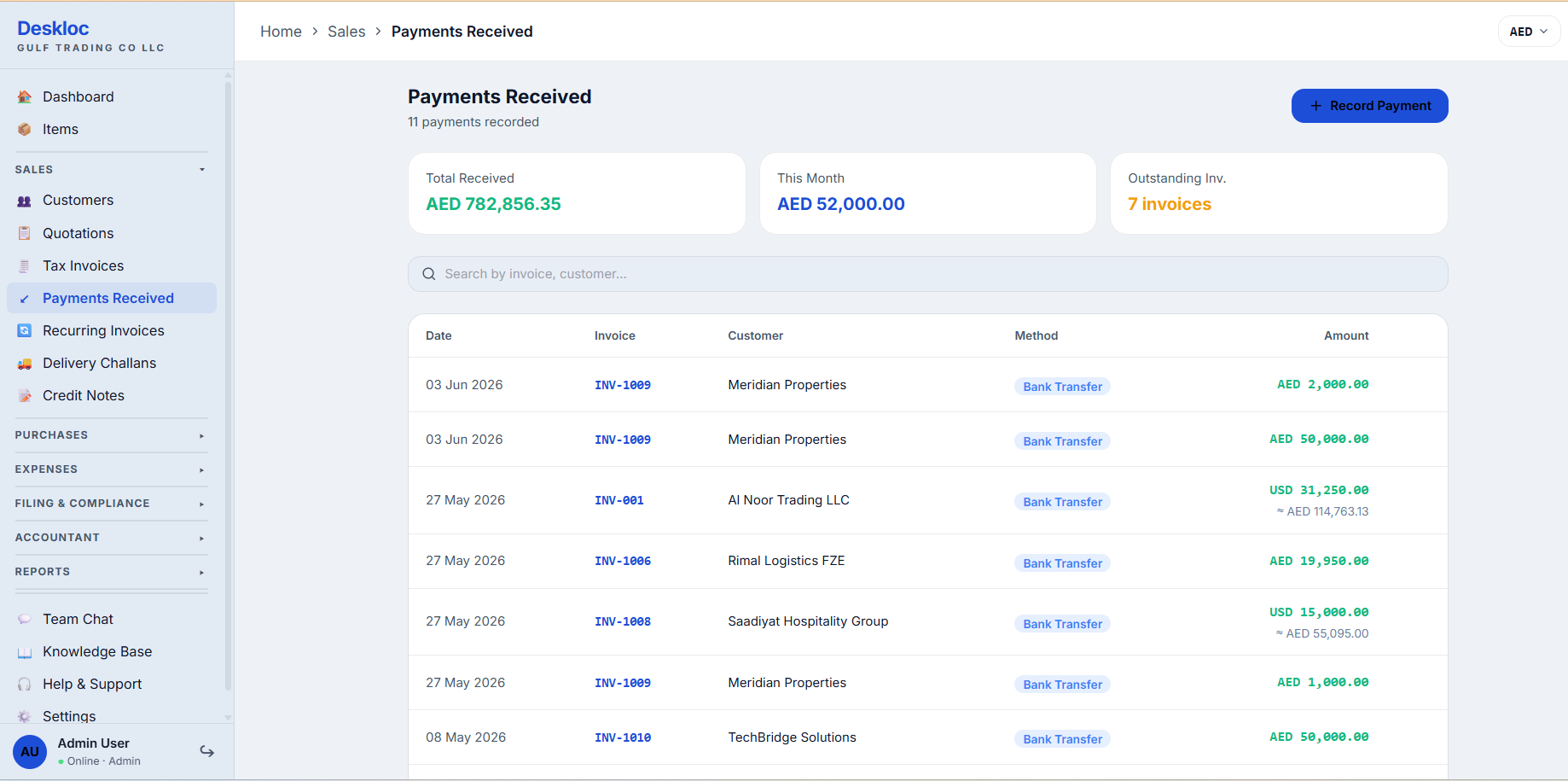
The USD row shows USD 31,250.00 as the primary amount with ≈ AED 114,763.13 underneath — the AED conversion is informational in the list, but it's the value that flows into your VAT return reporting.
Why this matters for VAT: the FTA requires VAT-relevant amounts on the VAT 201 return to be in AED. By converting at payment time and storing the AED figure, Deskloc Flow gives you a defensible, time-stamped record for each foreign-currency payment — not a recomputed value using whatever exchange rate happens to be live when you file the return weeks later.
Step 6: The Payments Received ledger
The Payments Received page is your master view of every payment recorded against every customer.
The three summary cards at the top show Total Received (cumulative, all currencies normalised to AED), This Month (current calendar month), and Outstanding Invoices (count of invoices with non-zero balance due). These give you a quick health check on AR without running a report.
The list below shows every payment with Date, Invoice number, Customer, Method, Amount. Hover over any row to reveal a delete icon on the right (covered in the FAQ — payments can be deleted but not edited in place). Click any row to open the Payment Details view:
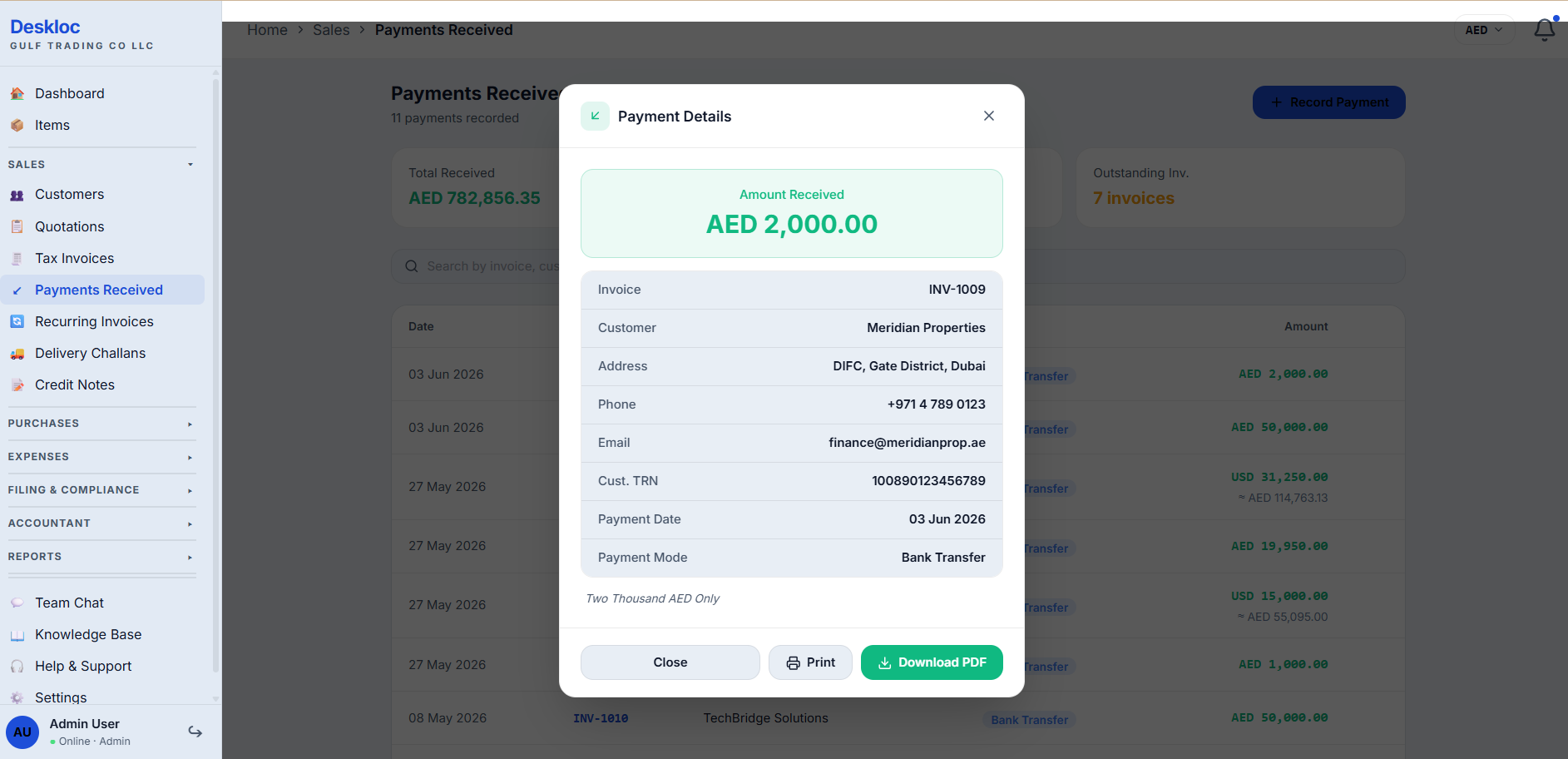
The Payment Details view shows everything stored against the payment — the customer's contact details, their TRN, the linked invoice, payment date and mode, the amount, and the amount in words ("Two Thousand AED Only") — and includes Download PDF and Print buttons for sending a payment voucher to the customer if they ask for one.
This is a useful artefact to send back to customers in B2B contexts — many UAE businesses want a written confirmation that their payment was received and applied to a specific invoice. Email the PDF, or print and stamp it for delivery alongside other documentation.
Common mistakes
Entering the AED equivalent on a USD invoice. If you're paid USD 10,000 against a USD invoice and you type "36,724" (the AED equivalent) into the Amount field, the system will treat that as USD 36,724 — wrong amount, wrong VAT impact. The Amount field uses the invoice's currency. For USD invoices, enter USD. Deskloc Flow handles AED conversion automatically.
Skipping the Receipt upload "to save time". Two minutes at payment time becomes an hour during your next FTA audit or bank reconciliation. Always attach the bank transfer confirmation, cheque image, or cash receipt voucher. It's the cheapest insurance in your AR process.
Recording a payment before the funds have actually cleared. Especially for cheques: a cheque deposited isn't a cheque cleared. Some businesses prefer to wait for the cheque to clear before recording the payment in Deskloc Flow; others record it on receipt and reconcile to the bank later. Pick a convention and apply it consistently — inconsistency between team members is what creates audit headaches, not the choice itself.
Setting the Payment Date to today when the payment actually arrived weeks ago. If a customer paid you on 12 May but you're only recording it now on 3 June, set the Payment Date to 12 May, not today. AR aging reports and VAT return periods depend on the actual receipt date, not the data-entry date.
Not checking the Already Paid line before recording. If a colleague already recorded a partial payment that you don't know about, recording another full payment on top will trigger an overpayment error (the system will block the save). Always glance at the Already Paid field in the form before entering the amount — it tells you exactly how much has been received against this invoice already.
How Deskloc Flow handles this
Payment recording is the un-glamorous backbone of AR — the part of accounting software that has to be reliable, fast, and correct, even though it's nobody's favourite feature. Deskloc Flow's design philosophy for payments: make the common case one click and make the edge cases possible.
Concretely:
- The common case (customer paid the full balance via bank transfer, today) is two clicks from the invoice action menu — open Record Payment, save. No fields to fill if the defaults are right.
- Partial payments are first-class, not an afterthought — the form expects them, the status reflects them, and the ledger tracks them. UAE B2B reality includes split payments and milestone arrangements; the software shouldn't fight that.
- Multi-currency is opinionated by design — the customer pays in the invoice's currency, full stop. This eliminates an entire class of "but what rate did we use?" disputes between sales, finance, and the customer.
- The AED equivalent is computed and stored at payment time — not at VAT return time. This gives you a stable, defensible value for FTA reporting and prevents exchange-rate drift between when payment came in and when you file.
- Overpayments are blocked at save time — you cannot accidentally record AED 10,500 against a 10,000 invoice. This keeps the AR ledger clean and forces the right handling of genuine overpayments (refund or advance) outside the invoice itself.
- The Payments Received page is the single source of truth for AR — one list, all customers, all currencies, with filters and search. Reconciling against your bank statement is a side-by-side exercise, not a multi-screen scavenger hunt.
The result is software where recording AR feels like recording AR — not like fighting the tool while the tool tries to be clever.
Ready to record your first customer payment? Try Deskloc Flow free →
Note for accountants. Before each month-end close, run the Payments Received list filtered to the month in question and reconcile against the business bank statement(s). Check three things: (1) every bank credit on the statement has a matching payment in Deskloc Flow, (2) every Deskloc Flow payment with Method = Bank Transfer / Online Transfer has a matching bank credit, and (3) Method = Cash and Method = Cheque entries have the corresponding receipts uploaded against the payment record. For VAT 201 preparation, the AED equivalent value stored at payment time is the value that flows into your output VAT calculation for foreign-currency invoices — do not recompute using current exchange rates. If you discover misallocated payments after VAT filing (payment applied to wrong invoice, wrong period, wrong customer), correct via journal adjustment in your accounting workflow and consider whether a VAT Voluntary Disclosure (Form 211) is required.
FAQ
Can I record multiple payments against one invoice? Yes. Record as many partial payments as the customer makes. Each one appears separately in the Payments Received ledger, and the invoice's Already Paid total updates each time. When cumulative payments equal the invoice total, the invoice status flips to Paid automatically.
What if I try to record more than the invoice balance (overpayment)? Deskloc Flow blocks overpayments at save time. If you enter an amount greater than the Balance Due, the form shows an "Amount exceeds balance due of AED X" error and the payment won't save. Correct the amount to the actual balance and try again. If the customer genuinely overpaid in real life (e.g. transferred AED 10,500 against a 10,000 invoice), record only the AED 10,000 against this invoice. The extra AED 500 should be handled separately — either refunded to the customer or held against a future invoice as an advance, per your accounting policy.
Can I edit or delete a payment after recording it? You can delete a recorded payment from the Payments Received list — hover over any payment row to reveal the delete (trash) icon, click it, confirm. The invoice's Already Paid total recalculates automatically, and the invoice status flips back appropriately (Paid → Partially Paid → Unpaid as relevant). There's currently no in-place edit — if you need to correct a payment (wrong amount, wrong mode, wrong date), delete the original entry and record a fresh one. For finalized accounting periods where deletion isn't appropriate, log the correction as a journal adjustment in your books and consider whether a VAT Voluntary Disclosure (Form 211) applies.
Does Deskloc Flow support online payment gateways or "pay this invoice" links? Not currently. Payments are recorded after the customer pays through their preferred channel (bank transfer, cheque, card terminal, cash). A customer-facing pay link with integrated card gateway is on the roadmap for a future release.
Does Deskloc Flow auto-match bank feed transactions to invoices? Not currently. Bank feed integration and auto-matching are planned for a later release. For now, payment recording is manual entry, optimised to be fast.
How do I send a customer a payment confirmation receipt? Open the payment from the Payments Received list to bring up the Payment Details view, then click Download PDF to get a receipt voucher you can email to the customer, or Print for in-person delivery. The voucher includes the customer's TRN, the linked invoice number, payment date and mode, and the amount in words — usable as a formal receipt.
Can I record a payment from a customer who hasn't been invoiced yet (advance payment)? Not against an invoice that doesn't exist. The Record Payment form requires a linked invoice. For genuine advance payments before invoicing, create the invoice first (you can issue an advance invoice or proforma in line with your accounting convention), then record the payment against it.
What if I receive a single bank transfer that covers multiple invoices? Record it as separate payments — one per invoice — split by the amount applied to each. The bank statement reference (use the Notes field) can link all entries back to the single bank credit on your statement, so reconciliation stays clean.
Last reviewed: 3 June 2026 by the Deskloc Flow team.