You can create a UAE-compliant tax invoice in Deskloc Flow from Sales → Tax Invoices → + New Tax Invoice. Pick a customer (their TRN and address auto-fill), set the date and payment terms, add line items, choose VAT 5% Standard or 0% Zero-Rated, and click Create Invoice. The resulting PDF is FTA-compliant out of the box — it shows your TRN, the customer's TRN, "TAX INVOICE" title, VAT breakdown, amount in words, and a QR code, all required for full UAE tax invoices.
This article walks through the full flow for UAE businesses, including how to pick the right VAT rate, when to use the Arabic Invoice layout for government clients, and when to use the Trade Invoice format with FOB/CIF pricing for export shipments.
TL;DR
- Sales → Tax Invoices → + New Tax Invoice → pick customer → add line items → choose VAT rate → Create Invoice
- VAT options: 5% Standard (default for most UAE supplies) or 0% Zero-Rated (for qualifying exports and specific supplies)
- Customer's TRN and address auto-populate from their record — make sure those are filled in first
- PDF output is FTA-compliant by default: your TRN, customer TRN, "TAX INVOICE" title, VAT breakdown, QR code, amount in words
- Arabic Invoice toggle for bilingual right-to-left layout (UAE government and enterprise clients)
- Trade Invoice toggle for FOB / CIF pricing breakdown (Free Zone re-exporters)
- Invoice numbers auto-generate sequentially starting from your configured prefix (e.g.,
INV-001)
Step 1: Open the Tax Invoices page
From any page in Deskloc Flow, click Sales in the left sidebar to expand it, then click Tax Invoices. You'll land on your invoice list.
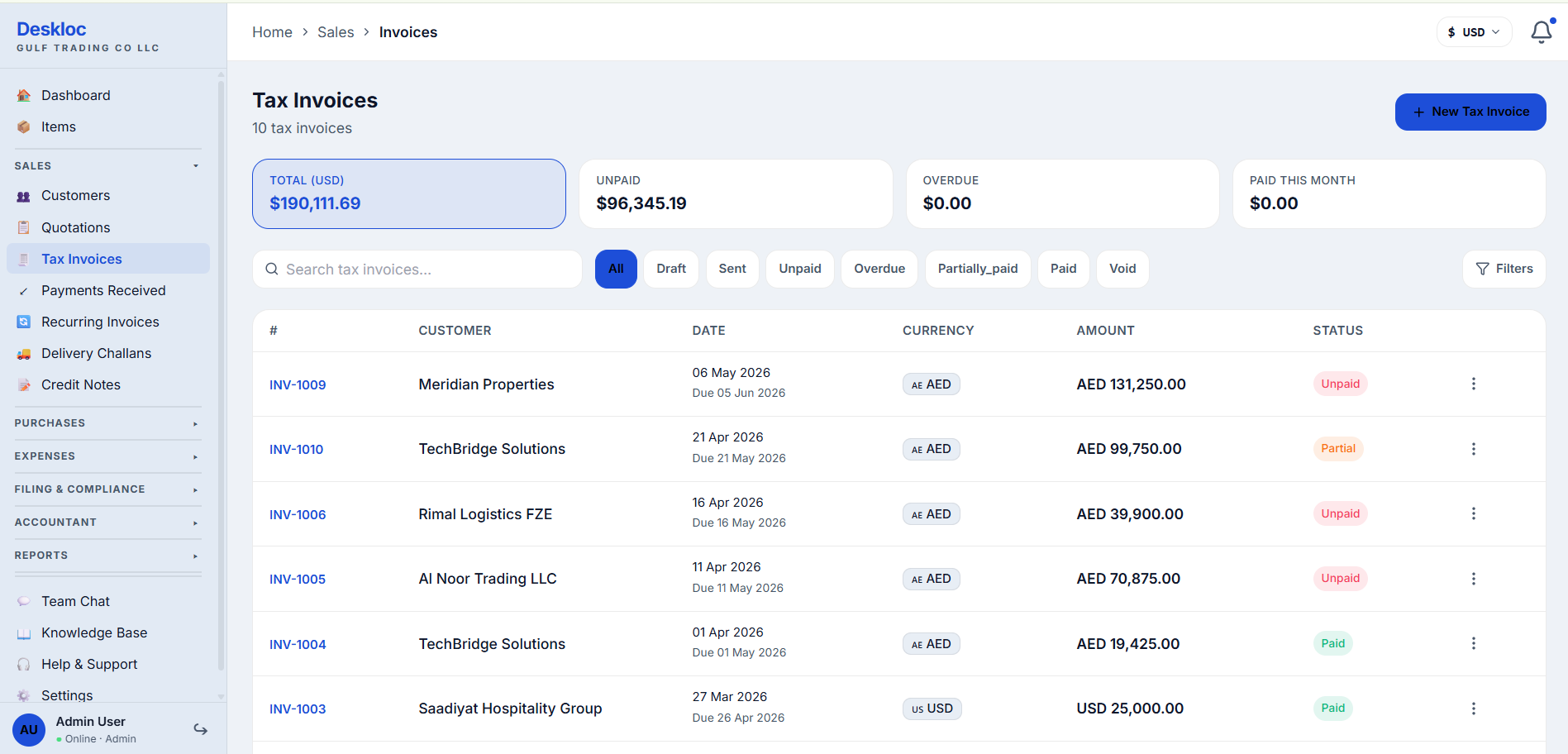
The list shows every invoice with its status (Draft, Sent, Unpaid, Partial, Paid, Overdue, Void), customer, date, currency, and amount. The four summary cards at the top show Total, Unpaid, Overdue, and Paid This Month — quick view of your receivables health.
You can filter by status using the pills (Draft / Sent / Unpaid / Overdue / Partially_paid / Paid / Void), search by invoice number or customer, and click any invoice to view or edit it.
To create a new one, click the blue + New Tax Invoice button in the top-right.
Step 2: Pick the customer, date, currency
The new invoice form opens with three main sections: Document Details (customer, dates, payment terms), Line Items (what you're billing), and Currency & Tax (in the right column).
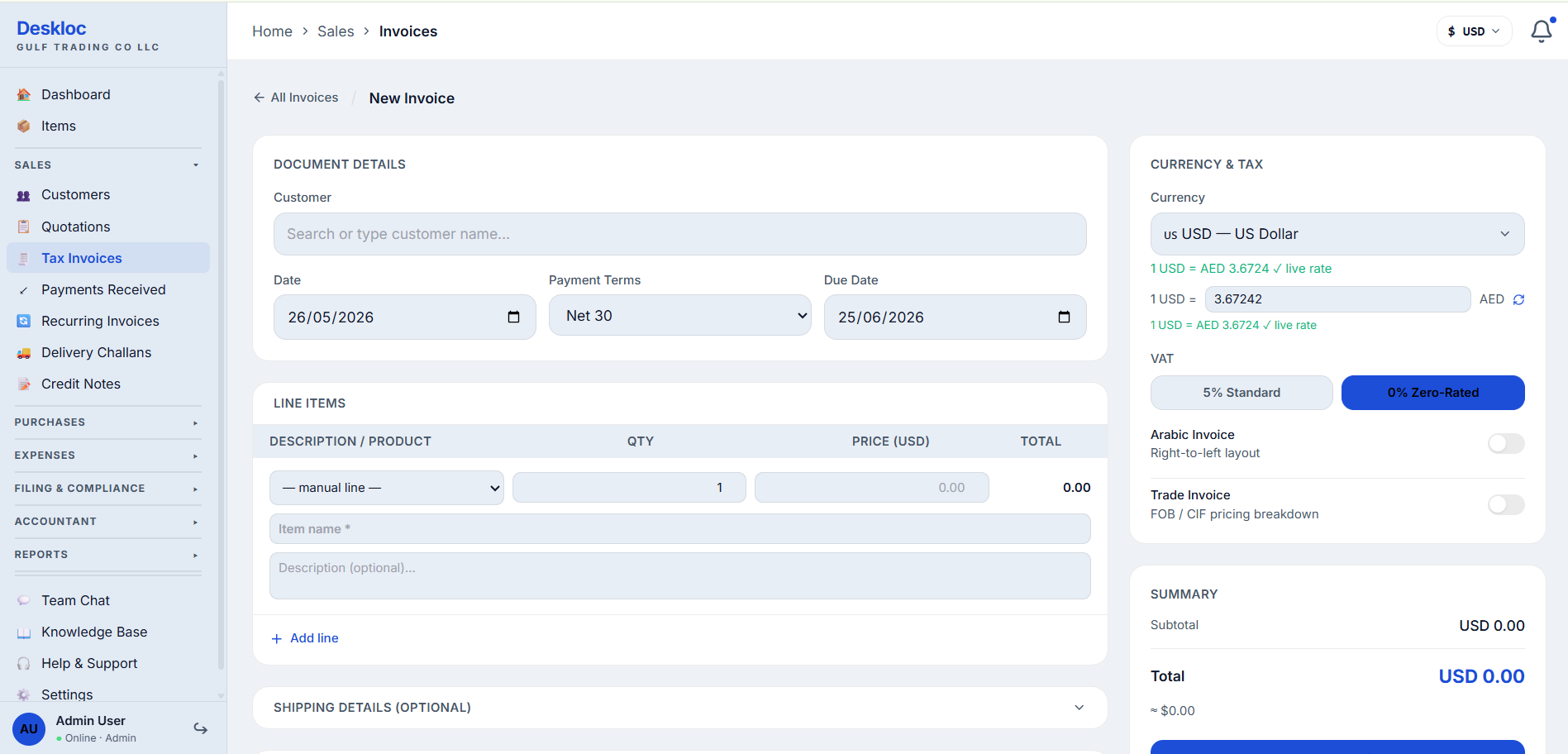
Customer — start typing the customer name to search your customer directory. Once selected, their TRN and address pre-fill on the invoice automatically. If you haven't added the customer yet, you'll need to add them first (see How do I add my first customer to Deskloc Flow?).
Date — defaults to today. This is the tax point of the supply, which determines which VAT return period the invoice falls into. For UAE VAT compliance, set this carefully — backdating tax invoices is restricted under FTA rules.
Payment Terms — pick from the dropdown (Net 7, Net 15, Net 30, Net 60, Due on Receipt, or custom). Deskloc Flow auto-calculates the Due Date based on Date + Payment Terms. You can override Due Date manually if needed.
Currency & Tax panel (right column) — this is where Deskloc Flow's UAE-first design really shows:
- Currency dropdown — pick AED, USD, EUR, GBP, INR, SAR, and 20+ others. If you pick a non-AED currency, the panel shows the live exchange rate (e.g.,
1 USD = AED 3.6724 ✓ live rate). You can override the rate manually if you've locked a rate with your customer. - VAT toggle — pick 5% Standard (default) or 0% Zero-Rated. We cover when to use each in Step 4.
- Arabic Invoice toggle — see Step 6.
- Trade Invoice toggle — see Step 7.
Step 3: Add line items
Scroll down to Line Items and click + Add line for each item or service you're billing.
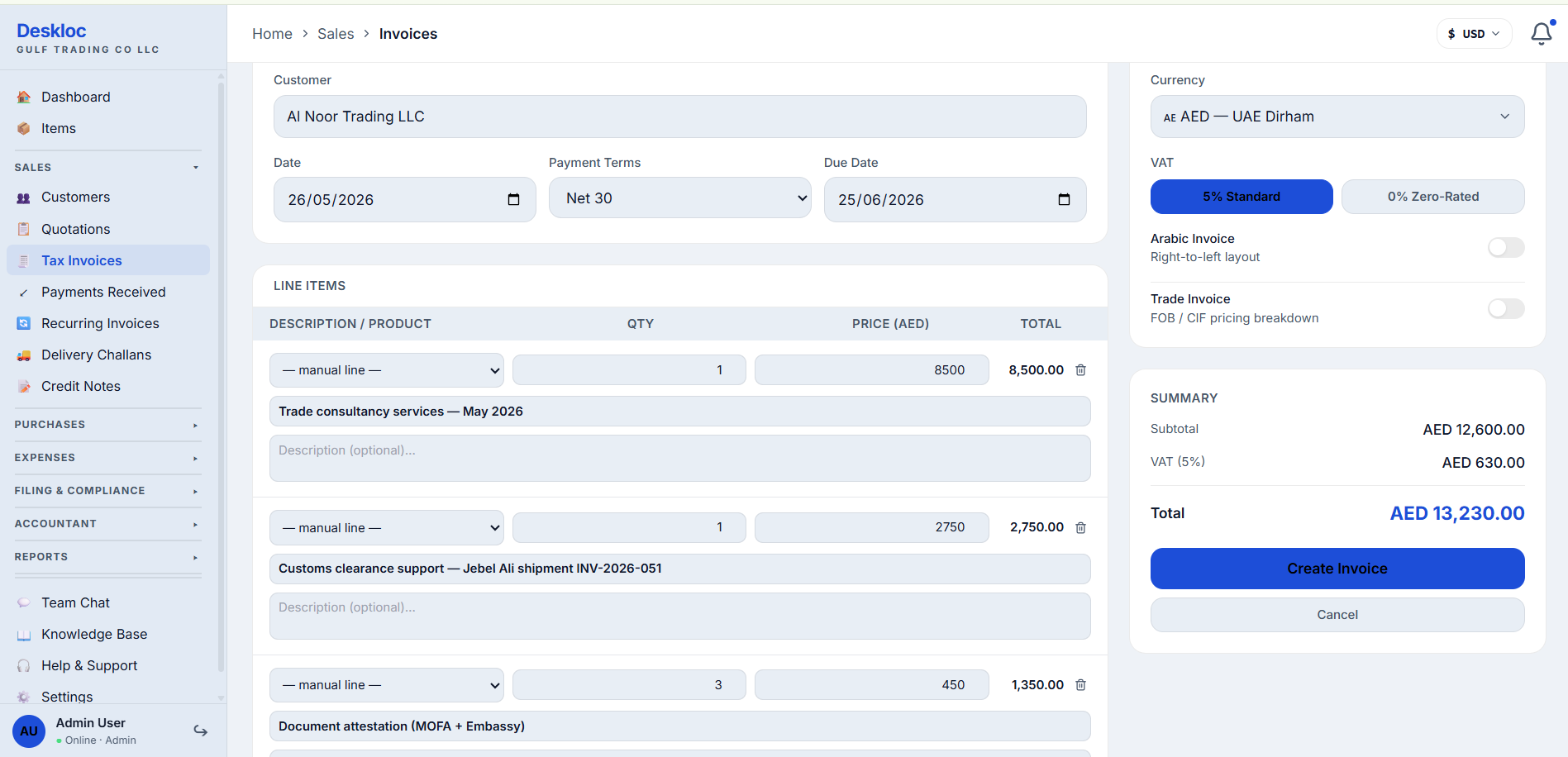
For each line, fill in:
- Description / Product — either pick from your saved Items catalog (drop-down) or type a manual line description. The example above uses manual lines.
- Item name — the short title that appears on the PDF (e.g., "Trade consultancy services — May 2026").
- Description (optional) — longer text shown below the item name on the PDF if you need to clarify scope, dates, or shipment references.
- Qty — quantity. Use 1 for one-off services, actual count for goods.
- Price — the unit price. Currency follows the invoice's currency selection.
- Total — auto-calculated from Qty × Price.
Add as many lines as you need. The Summary card in the right column updates live as you type, showing Subtotal, VAT (5%), and Total.
In the example above, three line items total AED 12,600 subtotal, AED 630 in VAT at 5%, and AED 13,230 total. The math is always shown so you can verify before saving.
Step 4: Pick the right VAT rate
This is the most important decision on the invoice. UAE VAT has three treatments under FTA rules — standard, zero-rated, and exempt — and getting it wrong on a tax invoice is the single most common reason for FTA query letters.
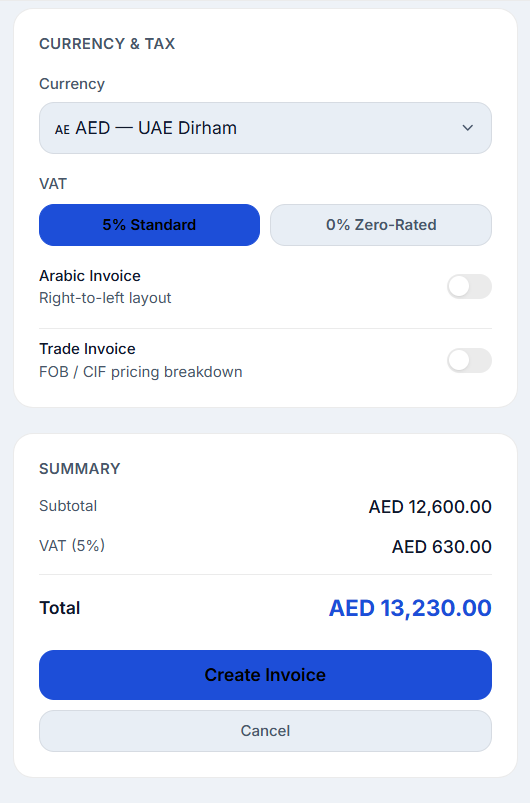
Deskloc Flow exposes the two rates that appear on tax invoices:
5% Standard rate — the default. Use this for most supplies of goods and services within the UAE to UAE-based customers. This includes:
- Sales of goods to UAE customers (whether VAT-registered or not)
- Services performed for customers physically in the UAE
- Local consultancy, professional services, and B2B work
- Most retail and B2C transactions
0% Zero-Rated — use this for supplies that are taxable but at a 0% rate. The supply still appears on your VAT return (in box 1b), and you can still recover input VAT, but no VAT is charged to the customer. This includes:
- Exports of goods outside the GCC (with valid export documentation)
- Exports of services where the recipient is outside the UAE and the service is consumed outside the UAE
- International transport of goods or passengers
- Specific zero-rated supplies under UAE VAT law (some education, healthcare, and first-supply residential real estate)
Note: VAT-exempt supplies (residential property rentals after first supply, bare land, local passenger transport, specific financial services) are a separate category — they appear in box 3 of the VAT return, not as zero-rated. If your business primarily handles exempt supplies, you may need to issue different document types or commercial invoices instead of tax invoices. Reach out via Help & Support if you need guidance on exempt supply documentation.
Quick rule of thumb:
- Selling to a UAE-based business or consumer? → 5% Standard
- Exporting goods or services outside the GCC with proper documentation? → 0% Zero-Rated
- Not sure? → Default to 5% Standard and check with your accountant before sending.
Step 5: Review and create
Once your line items and VAT rate are set, the Summary card in the right column shows the final breakdown:
- Subtotal — sum of all line items before VAT
- VAT (5%) or VAT (0%) — calculated tax amount
- Total — what the customer owes
Click Create Invoice to save. The invoice is created in Draft status by default.
After saving, you're taken to the preview screen where you can see the PDF exactly as your customer will receive it. The preview also lets you switch between five built-in PDF templates: Modern, Classic, Branded, Compact, and Trade — pick whichever matches your company's visual identity.
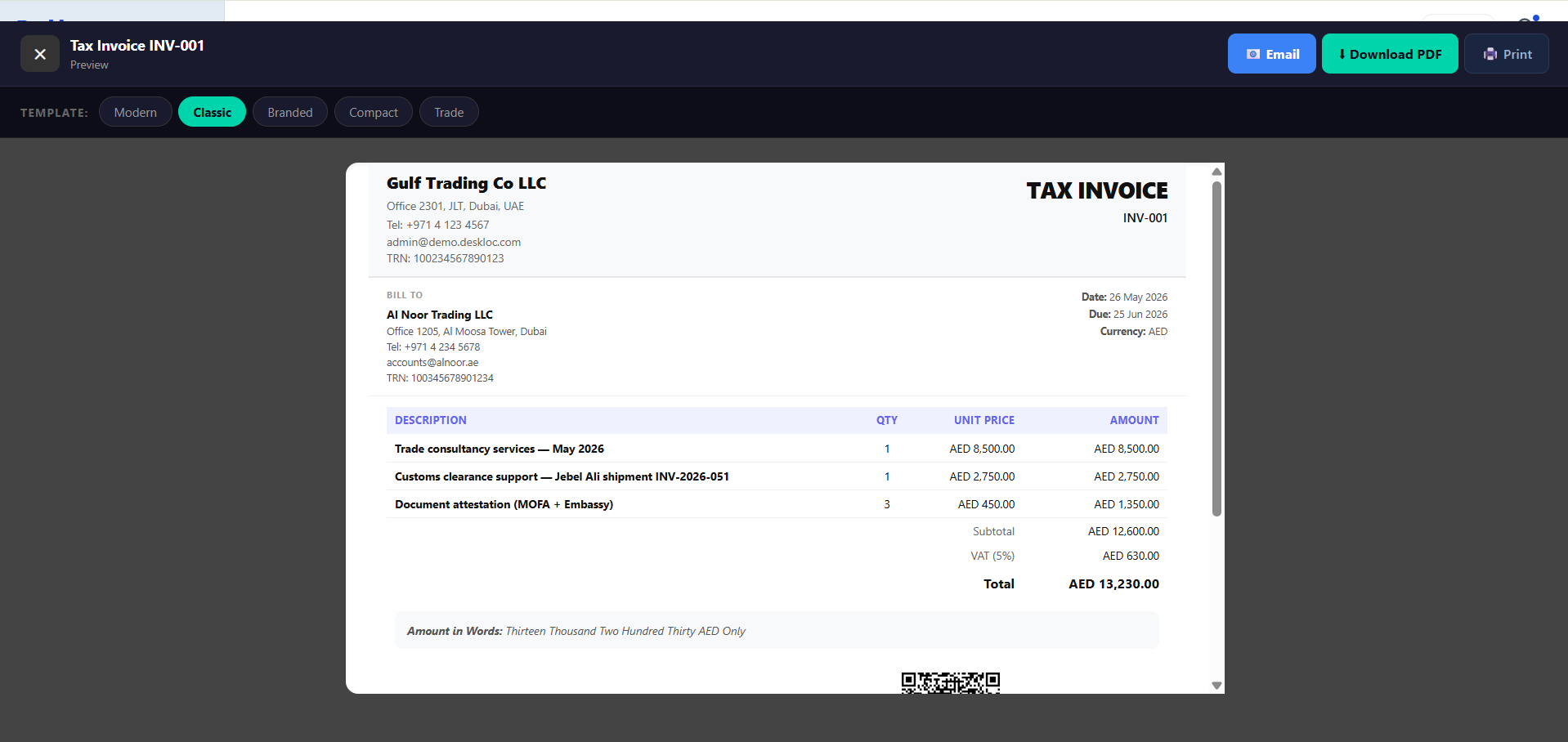
Notice what's automatically included on the PDF for FTA compliance:
- "TAX INVOICE" title (required for full tax invoices)
- Your company name, address, contact, and TRN in the header
- Customer's name, address, and TRN in the Bill To section
- Date and Due date
- Invoice number (sequential, unique — auto-generated)
- Line-by-line description, quantity, unit price, and amount
- Subtotal, VAT (with rate shown), and Total
- Amount in Words (e.g., "Thirteen Thousand Two Hundred Thirty AED Only") — a long-standing UAE business custom
- QR code at the bottom — encodes invoice details for verification
This is what an FTA-compliant tax invoice looks like out of the box. You don't need to add or remember anything — Deskloc Flow includes everything required by UAE VAT Executive Regulations Article 59 automatically.
From the preview, you can:
- Email the invoice directly to your customer (using their email from the customer record)
- Download PDF to send via WhatsApp, attach to another system, or archive
- Print for in-person delivery
Step 6: Arabic Invoice — for government and enterprise clients
Some UAE customers — federal entities, some Abu Dhabi government departments, and certain large enterprises — require invoices in bilingual English/Arabic format with a right-to-left layout.
Deskloc Flow handles this with a single toggle. In the Currency & Tax panel on the invoice form, switch on Arabic Invoice. The PDF then renders in right-to-left layout with Arabic labels for the structural elements (date, customer, subtotal, VAT, total, etc.).
For the Arabic layout to render correctly, your customer record should have the Company Name (Arabic) field filled in. If you skipped this when creating the customer, go back to Sales → Customers → [customer] → Edit and add the Arabic name before issuing an Arabic invoice to them.
Step 7: Trade Invoice — for Free Zone re-exporters and commodity traders
If you operate from JAFZA, DMCC, DAFZA, or another UAE Free Zone and handle export or re-export trades, you often need to issue invoices with FOB (Free on Board) / CIF (Cost, Insurance, Freight) pricing breakdowns. These are standard international trade terms required by importing countries' customs authorities, banks issuing letters of credit, and freight forwarders. Switch on the Trade Invoice toggle in the Currency & Tax panel to enable this format.
When you turn on Trade Invoice, the line items section changes to weight-based commodity pricing:
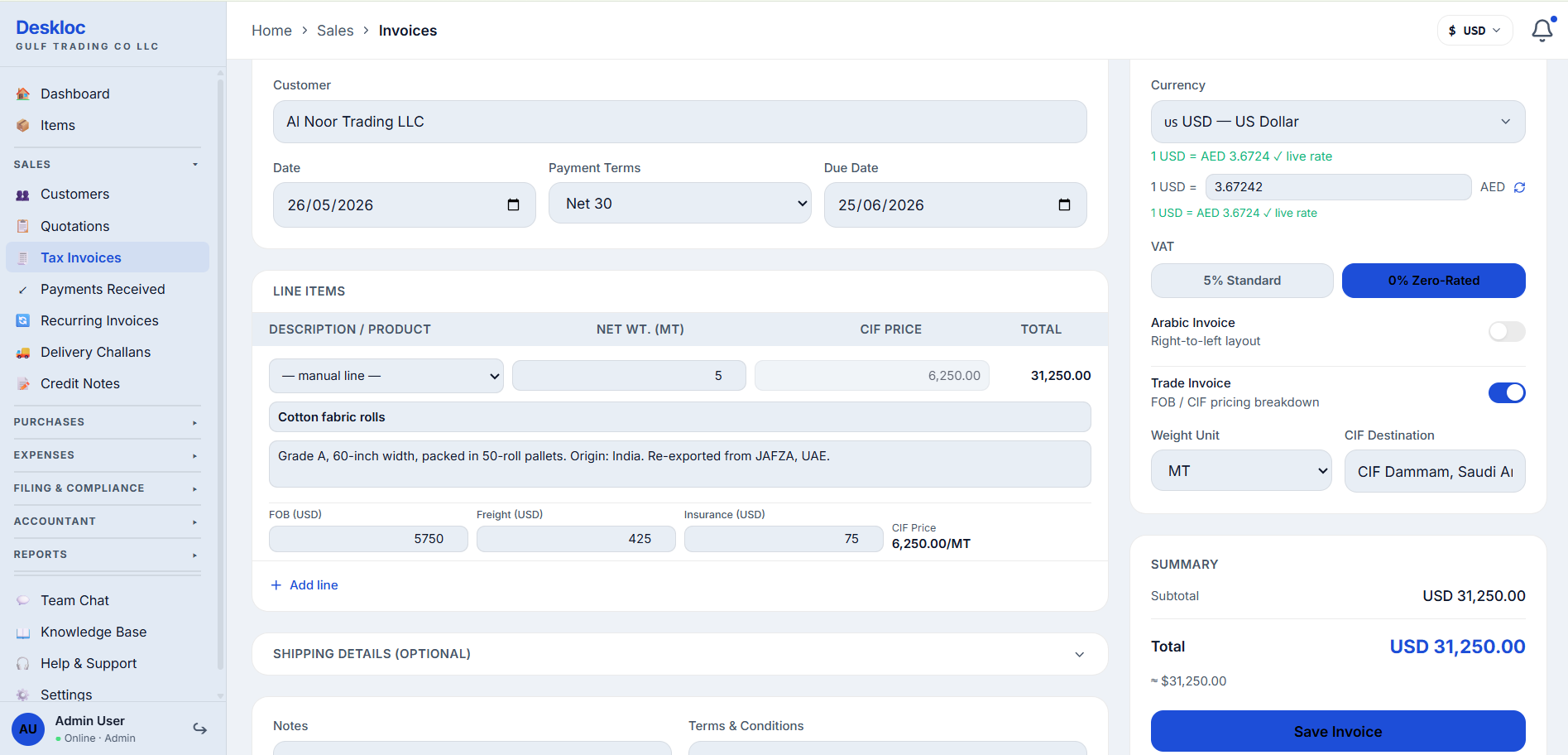
Key differences from a standard invoice:
- Qty column becomes "NET WT. (MT)" — net weight in metric tons (or whatever weight unit you select — MT, KG, lb)
- Price column becomes "CIF PRICE" — per-unit CIF price (cost, insurance, freight inclusive)
- New row appears under each line item: FOB / Freight / Insurance — each is the per-unit (per-MT) component that sums to the per-unit CIF price
- New side-panel fields: Weight Unit and CIF Destination — destination port for the shipment
The math works in two layers: per-MT pricing on each line (FOB + Freight + Insurance = CIF per MT), then per-MT × NET WT. = line total. So 5 MT × $6,250 CIF/MT = $31,250 total.
The PDF that gets generated is a proper international trade document, not just a tax invoice with extra fields:
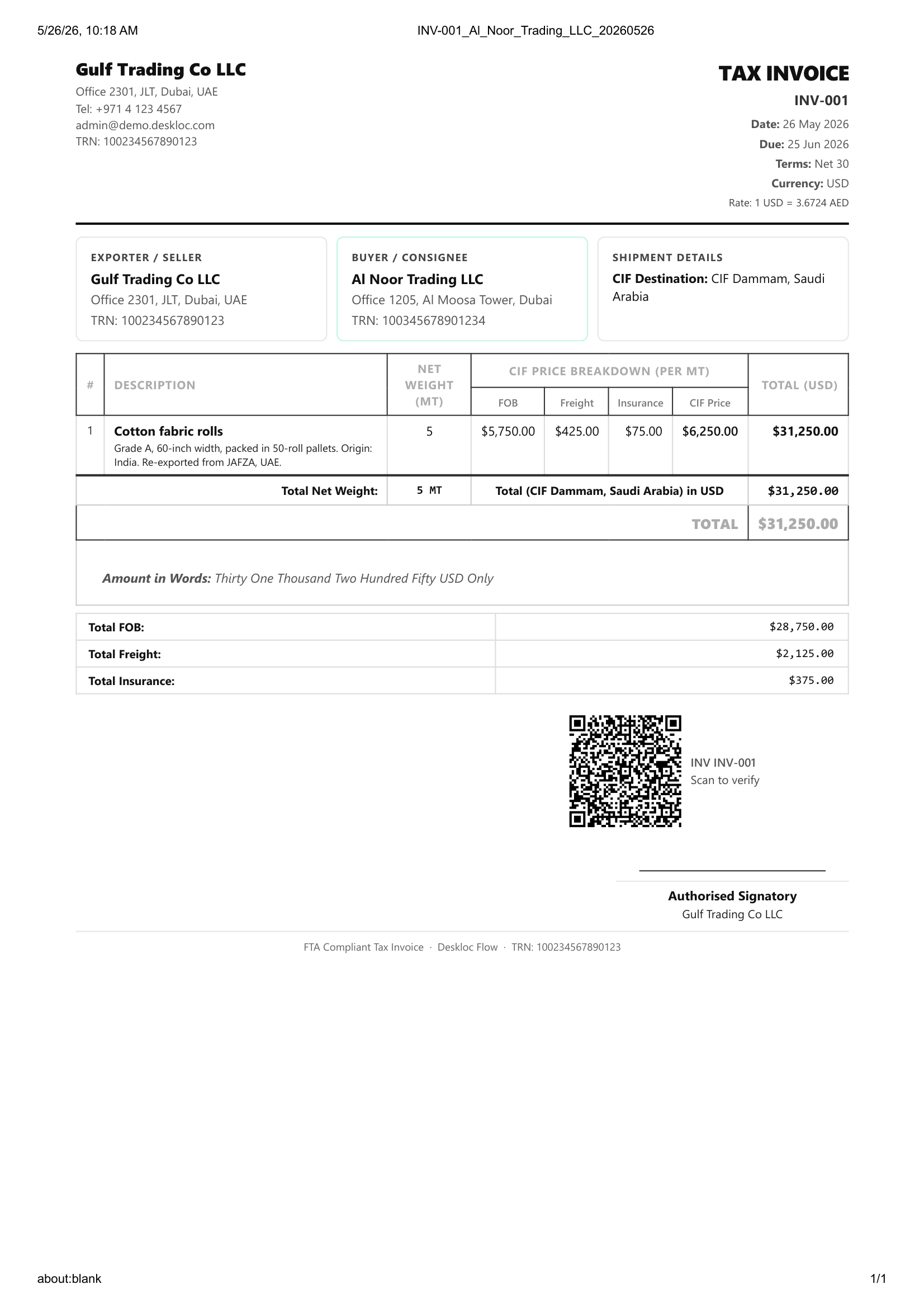
What the Trade Invoice PDF includes beyond a standard tax invoice:
- Exporter / Seller and Buyer / Consignee sections (instead of generic Bill To) — the structural framing banks and customs expect on commercial documents
- Shipment Details with CIF Destination clearly shown (e.g., "CIF Dammam, Saudi Arabia")
- CIF Price Breakdown (per MT) table — FOB, Freight, Insurance, and CIF Price columns showing the per-unit composition
- Total Net Weight row (e.g., "5 MT")
- Total FOB / Total Freight / Total Insurance summary rows at the bottom — the dollar amounts that LC-issuing banks and customs valuation teams typically check
- All standard tax invoice elements retained: your TRN, customer TRN, Amount in Words, QR code, Authorised Signatory block, "FTA Compliant Tax Invoice" footer
This is a UAE-specific feature most accounting software doesn't include — export and re-export commodity trading is a large part of UAE Free Zone business activity, and the standard "Bill To / Subtotal / Tax / Total" invoice format doesn't work for international shipments.
When to use Trade Invoice:
- Commodity exports priced per weight unit (metals, food grain, textiles, polymers, chemicals)
- Container shipments where the customer or their bank requires FOB/CIF breakdown
- Re-exports through UAE Free Zones to GCC neighbours, Africa, or South Asia
- Any sale where a letter of credit requires the invoice to show FOB and CIF components separately
When NOT to use Trade Invoice:
- Services and consultancy (use standard invoice — there's no shipment)
- Per-piece B2B sales within the UAE (standard invoice with 5% VAT)
- Retail or B2C transactions
Note on document naming: for commodity exports to GCC neighbours and beyond, some importers and LC-issuing banks expect the document titled "Commercial Invoice" or "Export Invoice" rather than "TAX INVOICE." Deskloc Flow currently labels all invoices as "TAX INVOICE" in the PDF; if your importer or bank specifically requires a different title, mention this in your delivery email so the importer's customs clearing agent uses the document correctly.
Common mistakes
Picking 0% Zero-Rated for a UAE-to-UAE sale. Zero-rating is for exports, not for local supplies just because the customer doesn't want to pay VAT. If the goods are delivered in the UAE or the service is performed for a UAE recipient, the rate is 5% Standard regardless of the customer's preference. Wrong VAT rate = wrong VAT return = FTA penalty risk.
Backdating tax invoices. Some accounting systems let you set any date on an invoice. Deskloc Flow allows date editing, but FTA rules under Article 67 of the VAT Decree-Law restrict when a tax invoice can be issued: a standard tax invoice (B2B above AED 10,000) must generally be issued within 14 days from the end of the month in which the supply took place. Simplified tax invoices (B2C or B2B below AED 10,000) must be issued on the same day as the supply. Setting an invoice date earlier than the actual supply date — or issuing later than the FTA window allows — risks misallocating VAT across return periods. Don't backdate without your accountant's guidance.
Missing the customer's TRN on a full tax invoice. If the customer is VAT-registered and the invoice is AED 10,000 or more, FTA rules require their TRN to appear on the invoice. Deskloc Flow auto-fills this from the customer record — but only if you entered the TRN when adding the customer. Check your customer records before high-value invoicing.
Not adding the Arabic company name before issuing an Arabic invoice. If you toggle Arabic Invoice but the customer record has no Arabic name, the layout still renders but with the English name in the Arabic-labeled fields, which looks unprofessional to a government client. Fill in the Arabic name on the customer record first.
Using Standard 5% on an export that qualifies for 0%. The flip side of the first mistake — over-charging VAT on a real export. If you charge 5% on a true export, your customer pays VAT they shouldn't pay, and you don't get to recover it as input VAT either. Confirm zero-rating eligibility (proper export documentation, recipient outside UAE, service consumed outside UAE) before applying 0%.
How Deskloc Flow handles this
Tax invoices are the single most regulated document in UAE business. Get them wrong and you face FTA penalties; get them right and you've quietly nailed compliance. Deskloc Flow's design philosophy: the FTA-compliant version is the default version. You don't toggle on compliance — you toggle on the customer-specific options (Arabic, Trade) when you need them.
Concretely, this means:
- "TAX INVOICE" title, TRN inclusion, VAT breakdown, and QR code are baked into every PDF template — not optional
- Sequential invoice numbering is automatic and unique within your tenant
- The customer's TRN flows from their record to every invoice — single source of truth
- VAT calculation happens in real time as you add lines — no spreadsheet math required
- Multi-currency with live exchange rates means foreign-currency invoices stay accurate without manual lookup
The result is software where compliance isn't a feature you have to remember to use — it's the path of least resistance.
Ready to create your first UAE tax invoice? Try Deskloc Flow free →
Note for accountants. Before filing each VAT 201, review the Tax Invoices list filtered by the period in question and spot-check 5-10 invoices for: correct VAT rate applied (5% vs 0%), customer TRN present on invoices AED 10,000+, and tax invoice date consistent with delivery or service performance date. The Reports section has a VAT Return view that maps each invoice's VAT to FTA return boxes — use that as the basis for filing, not the raw invoice list. If you find rate-application errors after filing, file a VAT Voluntary Disclosure (Form 211) within 20 business days of discovery to avoid escalated penalties.
FAQ
Can I edit an invoice after creating it? Yes, while it's in Draft status — open the invoice and click Edit Tax Invoice from the action menu. Once you've marked an invoice as Sent or recorded a payment against it, edits are restricted to protect the FTA audit trail. You can still correct errors via a Credit Note instead, which is the FTA-approved way to amend a finalized tax invoice.
How do I send an invoice to a customer by email? From the invoice preview or the invoice list, click the action menu (three dots) and select Email to Customer. The email goes to the address on the customer's record. If you want to use a different email or add a custom note, edit the customer record first or send the downloaded PDF manually.
What invoice number does Deskloc Flow assign?
Numbers auto-generate sequentially starting from your configured prefix (default INV-001, INV-002, etc.). You can change the prefix and starting number in Settings → Numbering if you're migrating from another system and want to continue your existing sequence. UAE FTA requires invoice numbers to be sequential and unique — Deskloc Flow handles this automatically.
Can different line items on the same invoice have different VAT rates? Currently the VAT rate is set at the invoice level — all lines on one invoice share the same rate (5% or 0%). For mixed-rate transactions (some lines standard-rated, some zero-rated), create separate invoices for each rate. This also keeps your VAT return reporting cleaner.
Does Deskloc Flow support reverse-charge VAT for imports? Reverse-charge VAT (where the UAE business self-accounts for VAT on imported services from overseas suppliers) appears on the purchase side, not the sales side. This is handled when you enter Bills from foreign vendors, not on customer invoices. See the article on Bills and reverse-charge VAT (coming soon).
What happens if I void an invoice? Voiding marks the invoice as cancelled and excludes it from VAT return calculations going forward. The invoice number remains used (you cannot re-use it — FTA requires unique sequential numbers), and the void itself is part of the audit trail. Use Void carefully: if the customer has already received the original invoice, also issue a Credit Note so they have matching documentation.
Do I need to keep a paper copy of each tax invoice? No. The FTA accepts electronic tax invoices as long as they're stored securely for the required retention period (at least 5 years for accounting records). Deskloc Flow stores every invoice you create, with full PDF rendering on demand — this satisfies FTA electronic record-keeping requirements.
Last reviewed: 26 May 2026 by the Deskloc Flow team.