You can add a customer to Deskloc Flow from Sales → Customers → + New Customer. Enter the company name in English (and optionally Arabic), the Tax Registration Number (TRN) if they have one, contact details, address, and country — then save. The customer is ready to invoice immediately, and their profile starts tracking everything you bill them and everything they pay you.
This article walks through the full flow for UAE businesses, including how Deskloc Flow handles the 15-digit FTA TRN, why the Arabic company name field matters for VAT-compliant invoices, and why payment terms and currency aren't on the customer record (they're set per-invoice, which is the right answer for UAE B2B).
TL;DR
- Sales → Customers → + New Customer → fill the form → Save
- Required field: Company Name (English). Everything else is optional but recommended.
- TRN is the UAE 15-digit Tax Registration Number — needed for VAT invoices
- Arabic name appears on bilingual invoices required for some UAE government and enterprise clients
- After saving, the customer profile tracks Total Invoiced, Total Paid, and Outstanding automatically
- Payment terms and currency are set per-invoice, not per-customer — flexibility for B2B
Step 1: Open the Customers page
From any page in Deskloc Flow, click Sales in the left sidebar to expand it, then click Customers. You'll land on your customer directory.
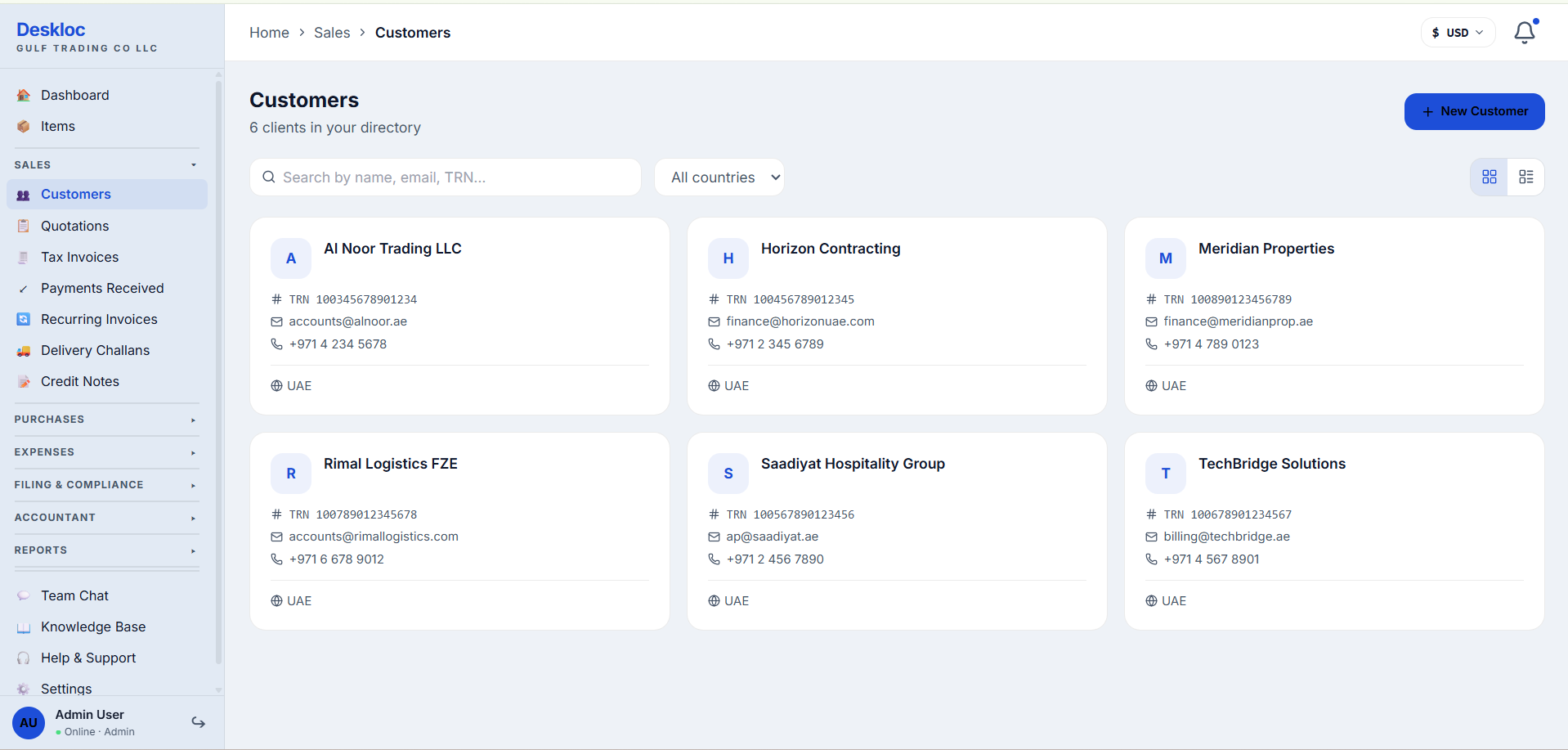
Each customer appears as a card showing their TRN, email, phone, and country. You can search by name, email, or TRN using the search bar, filter by country, and toggle between grid view (shown here) and list view using the icons in the top-right.
If this is your first time on this page, you'll see an empty state instead of cards. Click + New Customer in the top-right to add your first one.
Step 2: Open the New Customer form
Click the blue + New Customer button in the top-right corner. The new customer form opens with all fields visible.
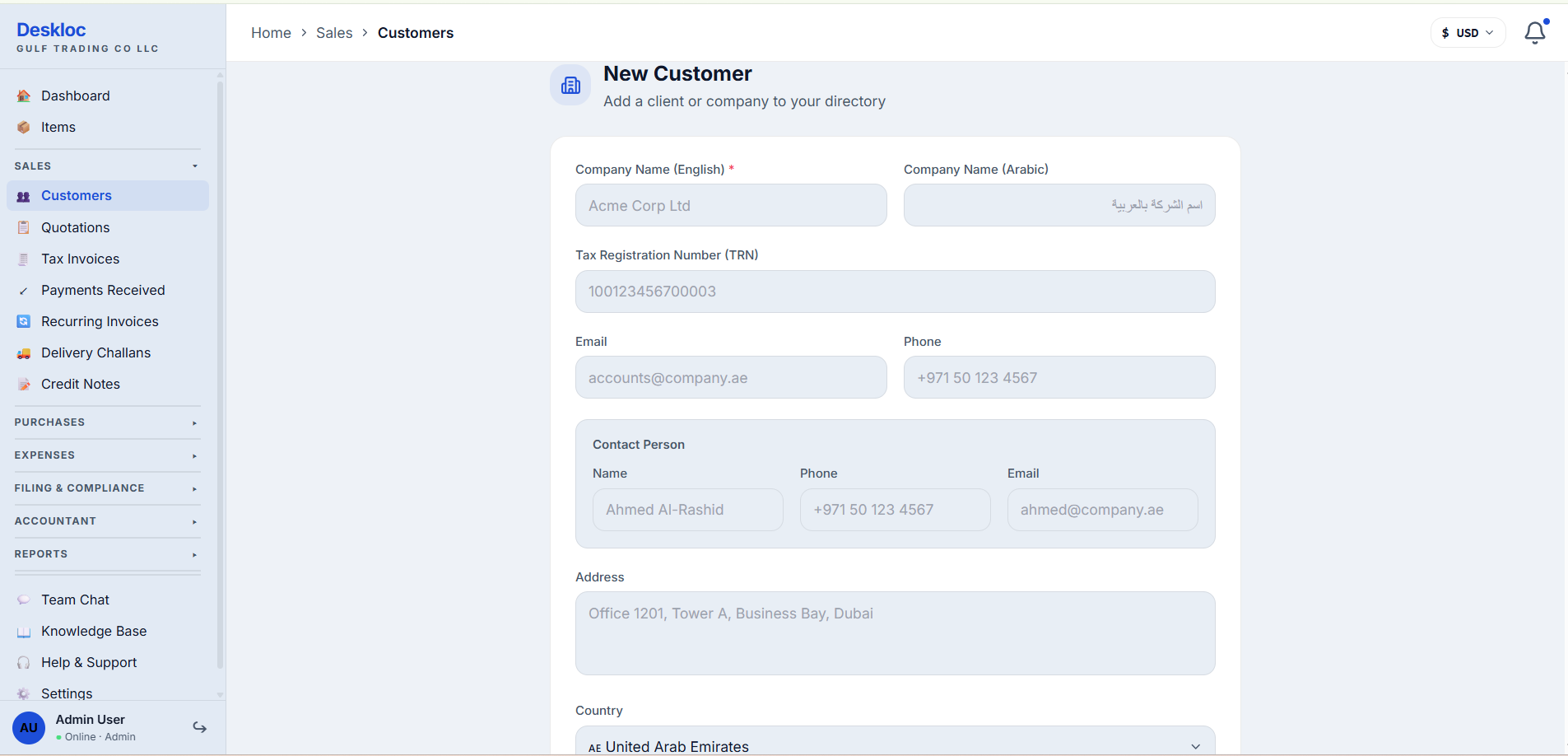
You'll see the form is grouped into logical sections: company identification at the top (English/Arabic name and TRN), primary contact (email and phone), an optional Contact Person sub-section for an individual at the company, address, and country.
Only Company Name (English) is required — marked with a red asterisk. Everything else is optional. That said, for UAE B2B customers, you'll want to fill in TRN and address at minimum so your invoices are VAT-compliant from day one.
Step 3: Fill in the customer details
Enter the customer's information. Here we're adding Al Noor Trading LLC as an example UAE customer.
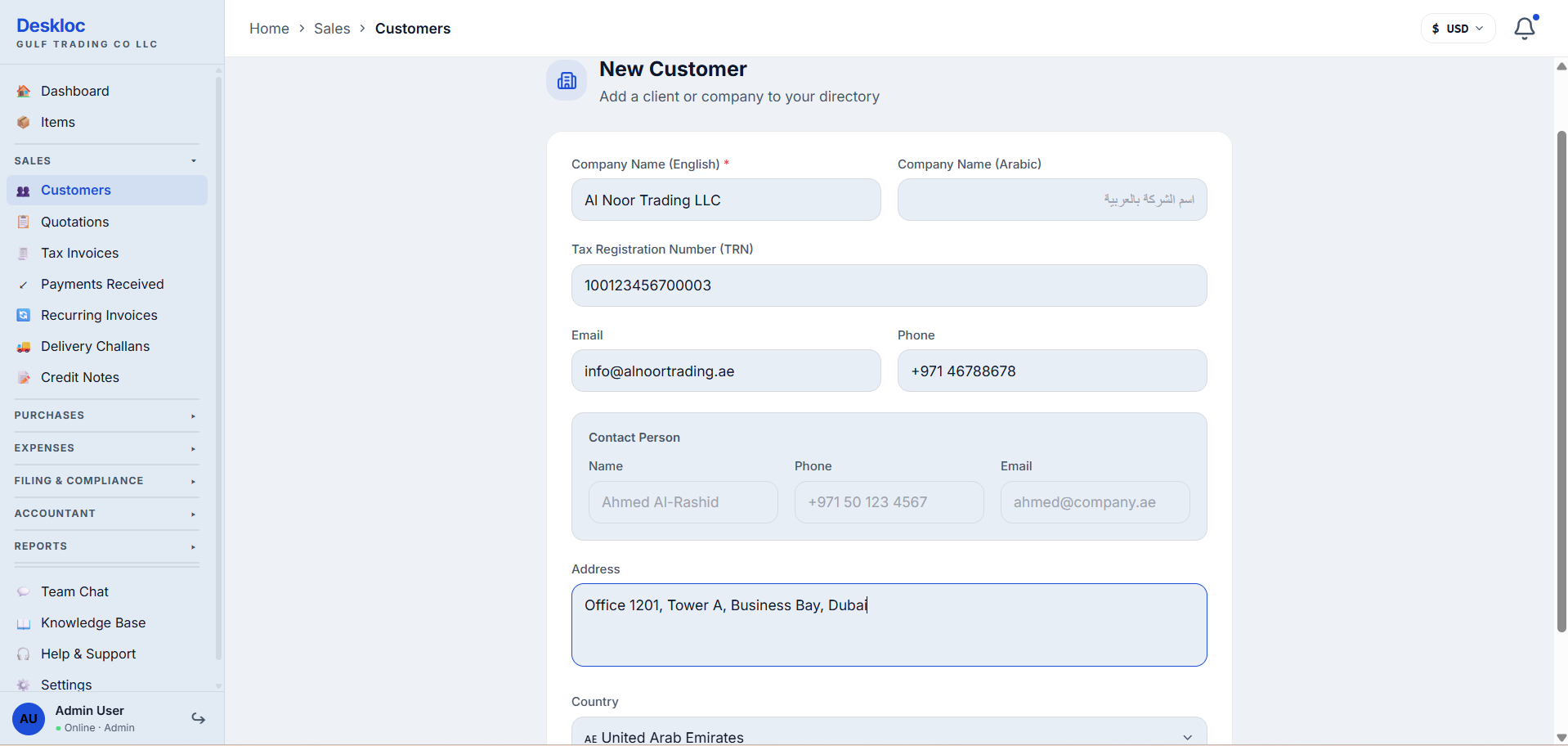
A few field-specific notes for UAE businesses:
- Company Name (English) — use the customer's legal trade name as registered with the DED or relevant Free Zone authority. This appears on every invoice you send them.
- Company Name (Arabic) — optional but recommended for customers who are UAE government entities, large enterprises, or who specifically request bilingual documentation. Some federal entities require Arabic on invoices.
- Tax Registration Number (TRN) — the FTA's 15-digit Tax Registration Number, always starting with
100. If the customer is VAT-registered in the UAE and you'll be issuing them tax invoices of AED 10,000 or more, you must include their TRN on those invoices per FTA rules. For smaller invoices (under AED 10,000) or sales to customers who aren't VAT-registered, a simplified tax invoice is allowed and TRN isn't strictly required — but it's still good practice to capture it on the customer record if they have one. If they don't have a TRN (most consumers and some small businesses), leave this blank. - Email — used by Deskloc Flow when you click "Send" on an invoice or quote. This is the email that receives PDFs.
- Phone — for your reference and appears on some document templates.
- Contact Person — the individual at the company who handles accounts payable. Useful when you need to chase a payment and want to email a specific person rather than a generic accounts inbox.
- Address — the customer's address as it should appear on tax invoices. FTA rules require the customer's address on full tax invoices (typically AED 10,000 and above to VAT-registered customers); simplified tax invoices have lighter requirements.
- Country — defaults to United Arab Emirates. Change it for export customers; the country selection determines whether VAT is charged (UAE customers = standard 5% rate, export to non-GCC = 0%, etc.) on invoices you create later.
Once everything looks right, scroll to the bottom and click Save to create the customer.
Step 4: Your customer's profile
After saving, you're taken to the customer's profile page. Here's what it looks like once a customer has invoice history — this example shows a different customer (Al Noor Trading LLC with prior invoices) so you can see the profile in active use, rather than a freshly-created blank one.
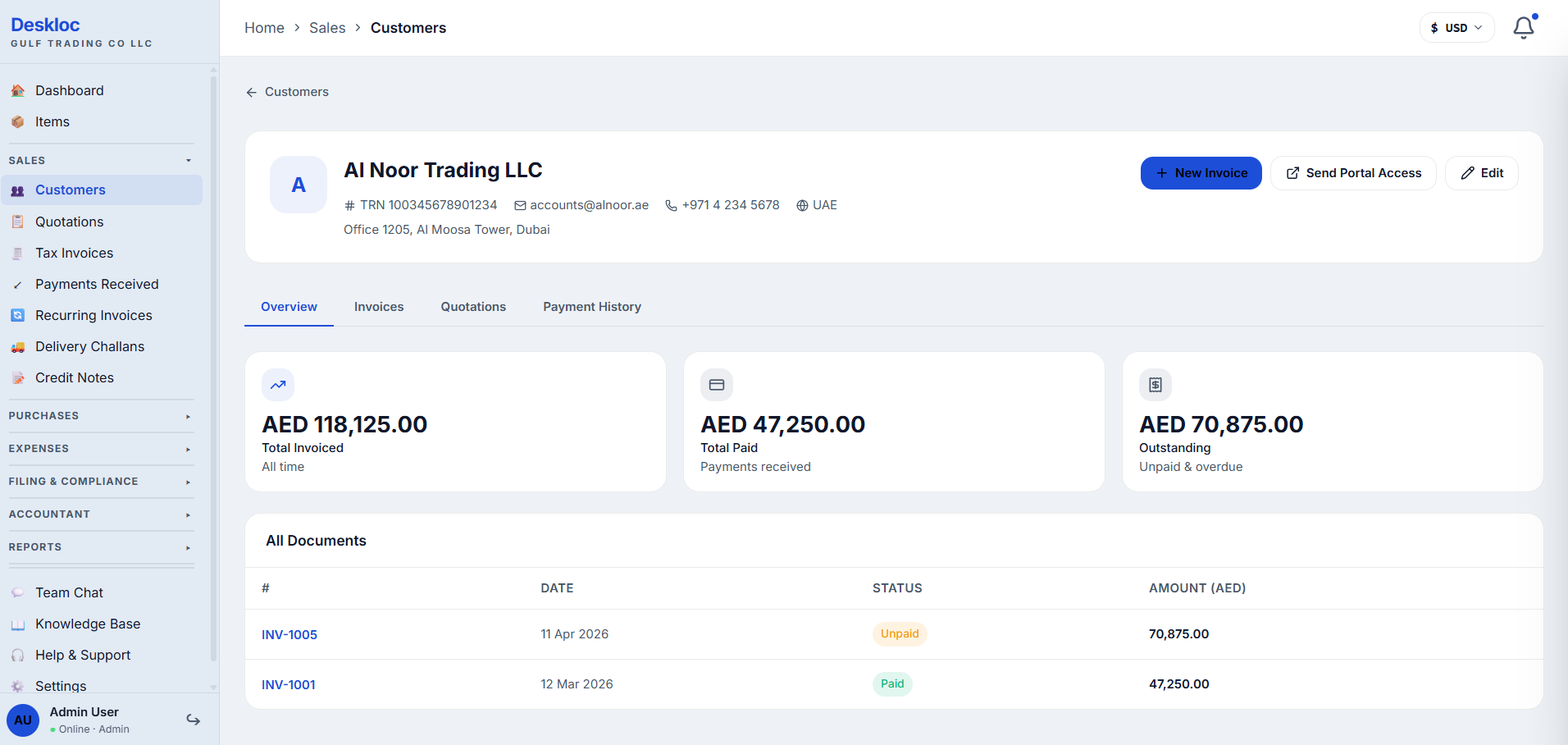
The profile shows three financial summary cards at the top: Total Invoiced (lifetime billing to this customer), Total Paid (what they've actually paid you), and Outstanding (unpaid invoices including overdue). These update automatically as you create invoices and record payments.
Below the cards, four tabs let you drill into the relationship:
- Overview — the default view, showing a chronological list of all documents (invoices, quotations, credit notes) you've ever sent this customer.
- Invoices — invoices only, filterable by status (paid, unpaid, overdue, draft).
- Quotations — quotations you've sent, showing which converted to invoices.
- Payment History — every payment received from this customer, with dates and amounts.
At the top-right, three action buttons:
- + New Invoice — start a new invoice for this customer with their details pre-filled.
- Send Portal Access — invites the customer to a self-service portal where they can view their statements and pay invoices online.
- Edit — open the edit panel to update the customer's info.
Step 5: Editing a customer
To update a customer's details — say their address has changed or you got their TRN later — click Edit in the top-right of the profile. A side panel slides in with all the fields pre-filled.
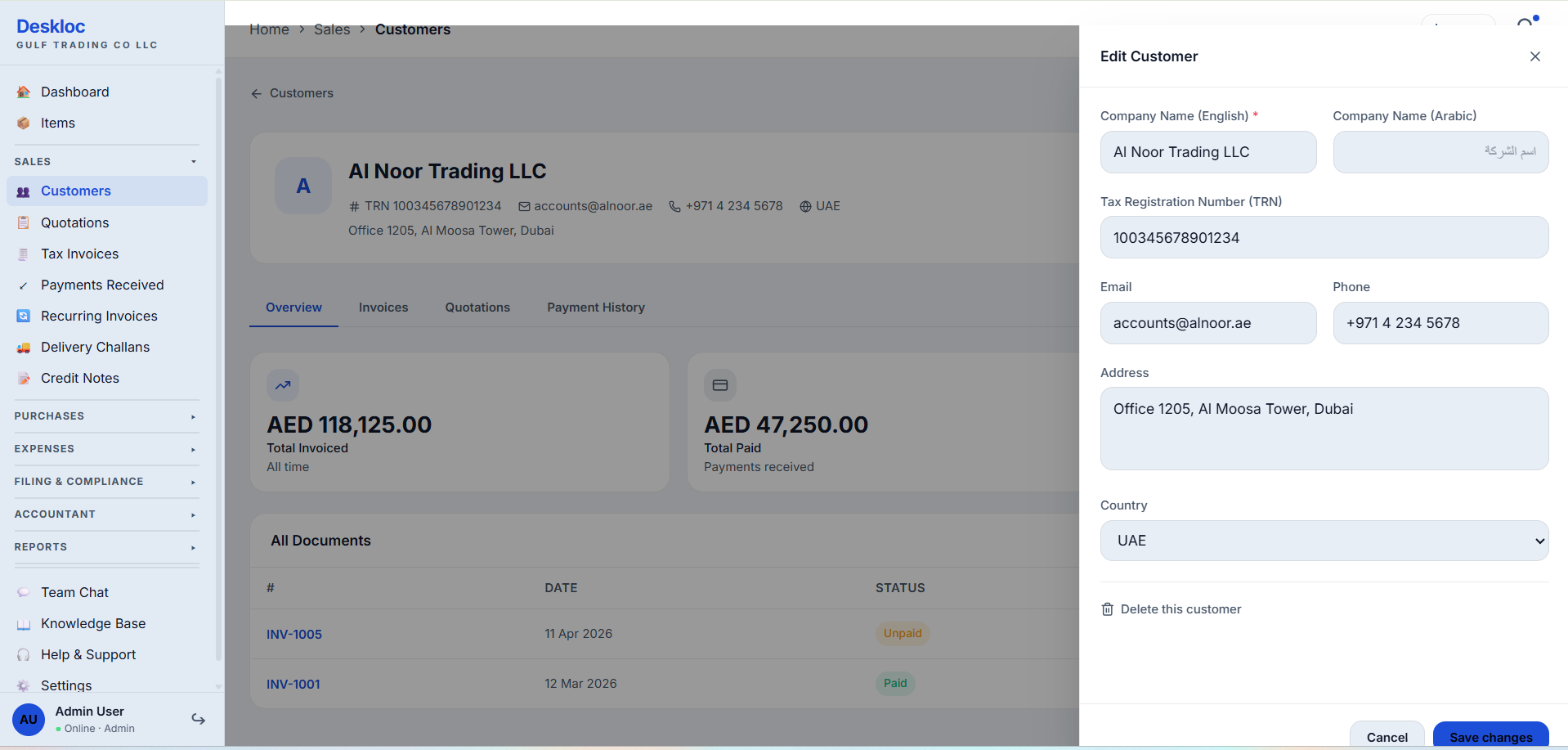
The edit panel mirrors the create form. Make your changes and click Save changes at the bottom. The customer's existing invoices and payment history are not affected — only future documents will use the updated details.
If you need to remove the customer entirely, click Delete this customer at the bottom-left of the panel. Note: you cannot delete a customer who has existing invoices or payments — the FTA requires audit trail retention, so Deskloc Flow protects historical records by blocking deletion. If you want to stop using a customer record, archive them instead by editing their company name to include "[ARCHIVED]" or similar, and avoid creating new invoices for them.
Why payment terms and currency aren't on the customer record
A common question from anyone moving from Tally, Zoho Books, or QuickBooks: "Where do I set this customer's default payment terms and currency?"
They're set per-invoice, not per-customer. This is intentional and matches how UAE B2B actually works:
- Payment terms vary by transaction. Your customer might be Net 30 for routine orders but Net 7 for rush jobs, or Cash on Delivery for first-time purchases until they establish credit. Locking terms to the customer record forces awkward overrides on every invoice.
- Currency depends on the deal. A UAE-based customer might pay you in AED for local supplies and USD for re-exports. Currency belongs on the invoice that's actually being billed, not the customer's master record.
When you create an invoice (covered in a separate article), you'll pick payment terms (Net 30, Net 60, Due on Receipt, etc.) and currency (AED, USD, EUR, etc.) from dropdowns on the invoice form itself. The customer record stays focused on identification and contact info.
Common mistakes
Entering the customer's name with inconsistent capitalization. "Al Noor Trading LLC" and "AL NOOR TRADING LLC" create two separate records if you accidentally add the same customer twice. Use the customer's legal name exactly as it appears on their trade license. Search before adding to avoid duplicates.
Skipping the TRN field for a VAT-registered customer. If your customer is VAT-registered and you'll be issuing them full tax invoices (typically AED 10,000 and above), FTA rules require their TRN on the invoice. If you skip it on the customer record now, you'll have to come back and add it before issuing the first full tax invoice — and the invoice won't be FTA-compliant without it.
Confusing Tax Registration Number (TRN) with Trade License Number. They're different. TRN is 15 digits starting with 100, issued by the FTA for VAT. Trade License Number is issued by the DED or Free Zone, format varies. Only the TRN goes in the TRN field.
Adding personal phone numbers for company customers. The Contact Person section is for the individual you deal with, but the main Phone field should be the company landline or general number. If the contact person leaves, you'll still have a working number to reach the company.
Forgetting the Arabic name for government clients. UAE federal entities and some Abu Dhabi government departments require bilingual documentation. If you don't fill in Company Name (Arabic) when creating the customer, you'll have to come back and add it before issuing your first invoice to them.
How Deskloc Flow handles this
The customer record is intentionally minimal: identification (names, TRN), how to contact them, and where they are. That's it. Anything that changes per-deal — payment terms, currency, discount, tax treatment — lives on the invoice, not the customer.
This design reflects how UAE small businesses actually invoice: deal-by-deal, with terms negotiated per project. A flat customer record means you can onboard a new customer in 30 seconds and start invoicing immediately, without forcing premature decisions about how this relationship will play out long-term.
For accountants reviewing the books, the customer profile's Total Invoiced / Total Paid / Outstanding cards give an instant credit-risk snapshot per customer. The Payment History tab gives you the data trail you need for aging analysis and collections work.
Ready to add your customers to Deskloc Flow? Try Deskloc Flow free →
Note for accountants. When you're set up on a UAE client's Deskloc Flow account with the Accountant role, you have full visibility into their customer master data including TRNs and address records — both of which feed into the VAT return. Before filing the VAT 201, spot-check 3-5 high-volume customer records for TRN completeness; missing TRNs on tax invoices over AED 10,000 are the single most common reason for FTA query letters during audits. Use the customer directory's search to find customers with no TRN (search for
TRN -or just scan the cards) and ask the client to chase the missing numbers.
FAQ
Is the Tax Registration Number (TRN) mandatory when adding a customer? No — only Company Name (English) is required. But if the customer is VAT-registered and you'll be issuing full tax invoices (typically AED 10,000 and above), you must include their TRN on those invoices per FTA rules. Simplified tax invoices (under AED 10,000, or to non-VAT-registered customers) have lighter requirements and TRN isn't strictly required on the invoice itself. Either way, it's easier to capture the TRN once on the customer record than to add it later.
What if my customer is outside the UAE? Add them as normal and change the Country field to their actual country. When you invoice an export customer, Deskloc Flow handles the VAT treatment automatically based on the country (e.g., 0% rate for exports outside the GCC). You don't need a TRN for non-UAE customers — leave the field blank.
Can I import customers from a spreadsheet? Bulk CSV import is not currently available — you'll need to add customers one at a time through the form. This is on our roadmap as a priority feature for users migrating from Tally, Zoho Books, QuickBooks, or other platforms. If you're planning a migration and need to add a large list (50+ customers), you can request prioritization by emailing us through the Help & Support page in your account — we use migration requests to help shape the rollout order.
Where do I set this customer's payment terms? Payment terms (Net 30, Net 60, Due on Receipt, etc.) are set per-invoice, not on the customer record. When you create an invoice for this customer, you'll select the payment terms on the invoice form. This lets you use different terms for different transactions with the same customer.
Where do I set this customer's currency? Currency is also per-invoice. You pick AED, USD, EUR, or any of the 25+ supported currencies when creating each invoice. This lets you bill the same customer in AED for local supplies and USD for re-exports, without separate customer records.
Can I delete a customer who has old invoices? No. UAE FTA rules require businesses to retain accounting records for at least 5 years, including the customer details on each invoice. Deskloc Flow blocks deletion of customers with any invoice or payment history. If you want to stop transacting with a customer, simply don't create new invoices for them — or edit their company name to mark them as archived (e.g., "[ARCHIVED] Al Noor Trading LLC").
How do I add a customer's bank account for receiving payments? You don't add their bank account to the customer record. The customer record holds their contact info. When they pay you, you record the payment in Payments Received, where you'll pick which of your bank accounts received the funds. Your bank accounts are set up in Settings → Bank Accounts.
What's the difference between Email on the customer record and Email on the Contact Person?
The main Email field is the generic accounts email (like accounts@alnoor.ae) — this is where Deskloc Flow sends invoices when you click Send. The Contact Person email is for an individual (like ahmed.rashid@alnoor.ae) — use this when you need to chase a specific person about a specific invoice. Both can be filled in; they serve different purposes.
Last reviewed: 22 May 2026 by the Deskloc Flow team.