Your company profile is the first thing to set up after signing in. The details you enter here appear on every invoice, quotation, and bill you send — so it's worth getting right the first time.
This takes about 3 minutes.
Open the profile settings
From the sidebar, click Settings. The Profile tab opens by default, with the Business Profile section ready to fill in.
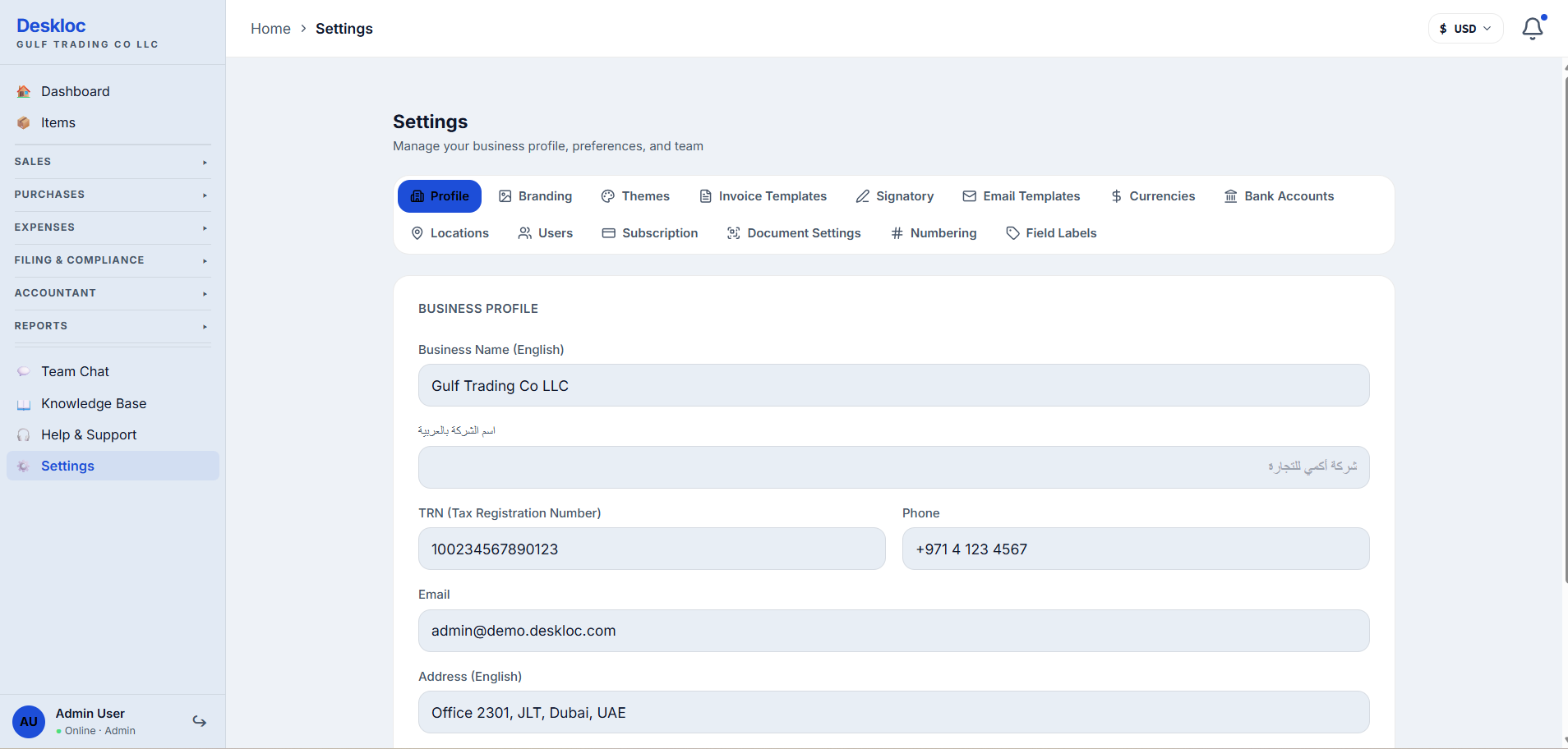
If you ever need to come back, the same page is at Settings → Profile.
Fill in your business details
Only one field is strictly required: the English business name. Everything else is optional, but the more you fill in, the better your invoices and reports will look.
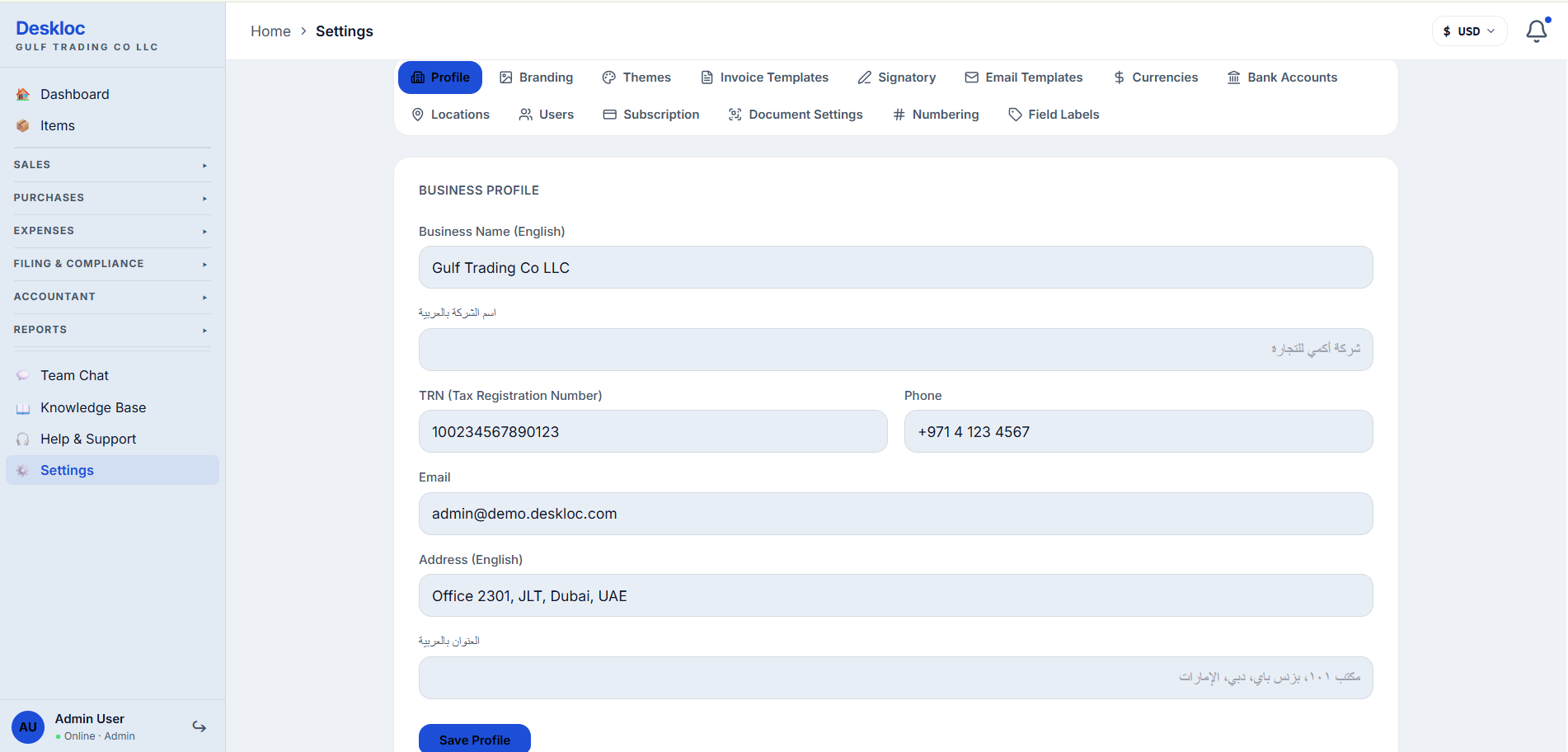
The fields are:
- Business Name (English) — your legal company name as it should appear on invoices. This is the only required field.
- اسم الشركة بالعربية (Business Name in Arabic) — your company name in Arabic. Optional, but recommended if you serve Arabic-speaking customers — it shows on Arabic invoices alongside the English name.
- TRN (Tax Registration Number) — your 15-digit Federal Tax Authority number. Leave blank if you're not VAT-registered.
- Phone — your business phone, in international format (for example,
+971 4 123 4567). - Email — the email address customers can reach you on. This appears on invoice footers and quotation cover pages.
- Address (English) — your full business address. This prints on every invoice and quotation.
- العنوان بالعربية (Address in Arabic) — same address in Arabic, for Arabic invoices.
Save your changes
Scroll to the bottom and click Save Profile. Your changes apply immediately to all new documents you create.
If you edit an invoice later, the new profile details will be used the next time you print or email it.
Add your logo (optional but recommended)
Your logo appears at the top of every invoice and in the sidebar. To upload one:
- Click the Branding tab at the top of the Settings page.
- In the Company Logo section, click Upload Logo.
- Choose a PNG, JPG, or SVG file. The maximum size is 2 MB.
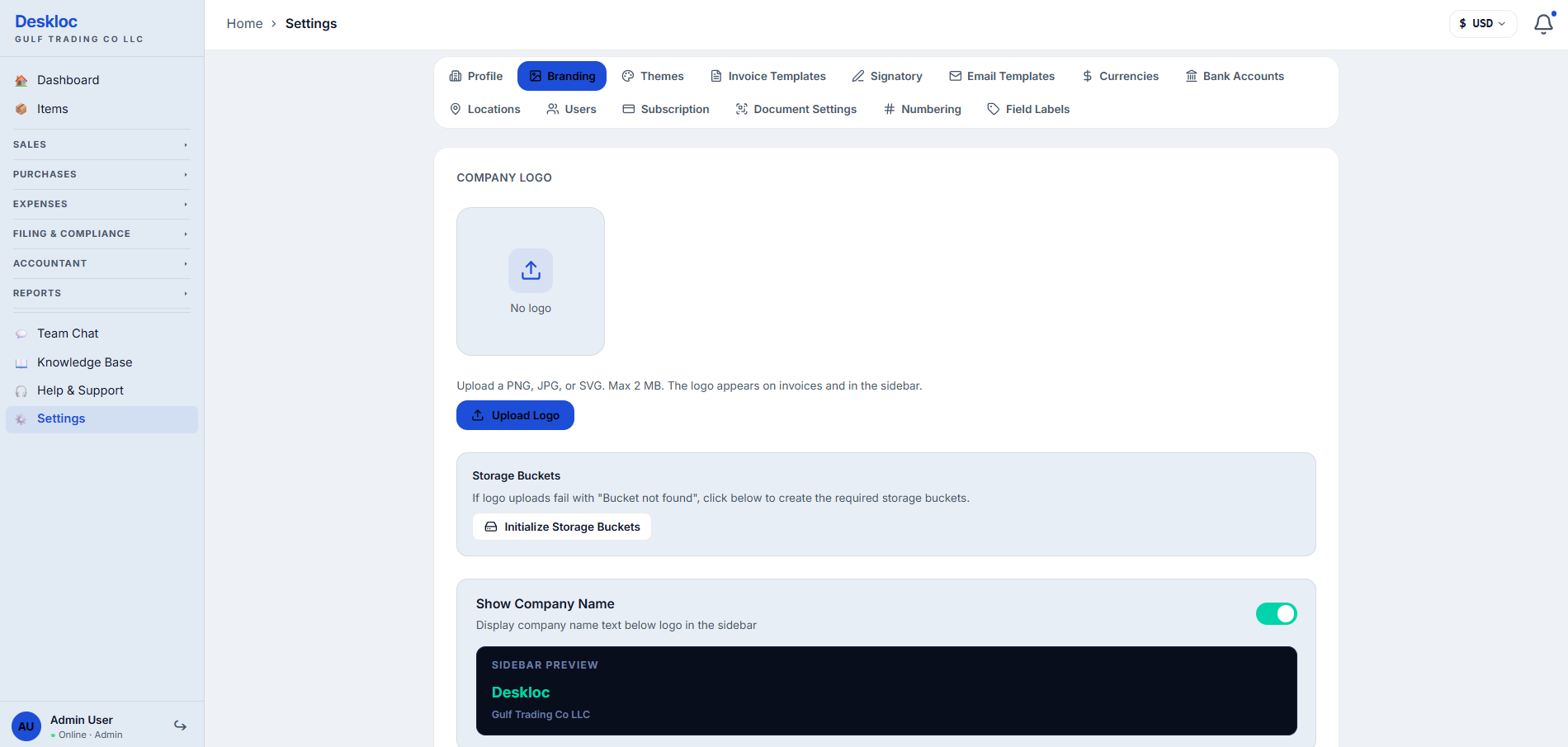
Square logos look best. If your logo has transparency (like a PNG with no background), it will blend naturally with both light and dark themes.
You can also toggle Show Company Name off if your logo already includes your company name as part of the image.
Note for accountants: The TRN field is what makes invoices FTA-compliant for VAT purposes. If your client is VAT-registered, this field must be filled in for their invoices to be valid tax invoices. The TRN appears on the print/PDF output in the format the FTA expects. Deskloc Flow doesn't validate the TRN format — please verify it matches your client's FTA registration certificate before going live.