You record a bill in Deskloc Flow from Purchases → Bills → + New Bill. Enter the supplier's invoice number, pick the vendor, add the line items with their VAT, attach the supplier's tax invoice, and save. The bill lands in your payables, the input VAT is captured for your VAT return, and the attached invoice is on file as the evidence behind your VAT claim.
A bill is the purchase-side mirror of a tax invoice: where an invoice is a document you issue and that records output VAT, a bill is a document you receive and that records input VAT — the VAT you can reclaim. This article covers recording one accurately for UAE compliance.
TL;DR
- Purchases → Bills → + New Bill → fill the form → Create Bill
- The Bill / Invoice Number is the supplier's invoice number, not one you generate
- Pick the vendor (from the vendors you've added), set the VAT rate per the supplier's invoice
- Attach the supplier's tax invoice — this is the evidence for your input VAT claim
- The bill appears in your Bills list as Unpaid until you record payment against it
Step 1: Open the Bills page
In the sidebar, expand Purchases and click Bills. This is your accounts-payable list — every bill you've recorded, with its vendor, dates, total, and status (Unpaid / Overdue / Paid). The cards at the top summarise what you owe.
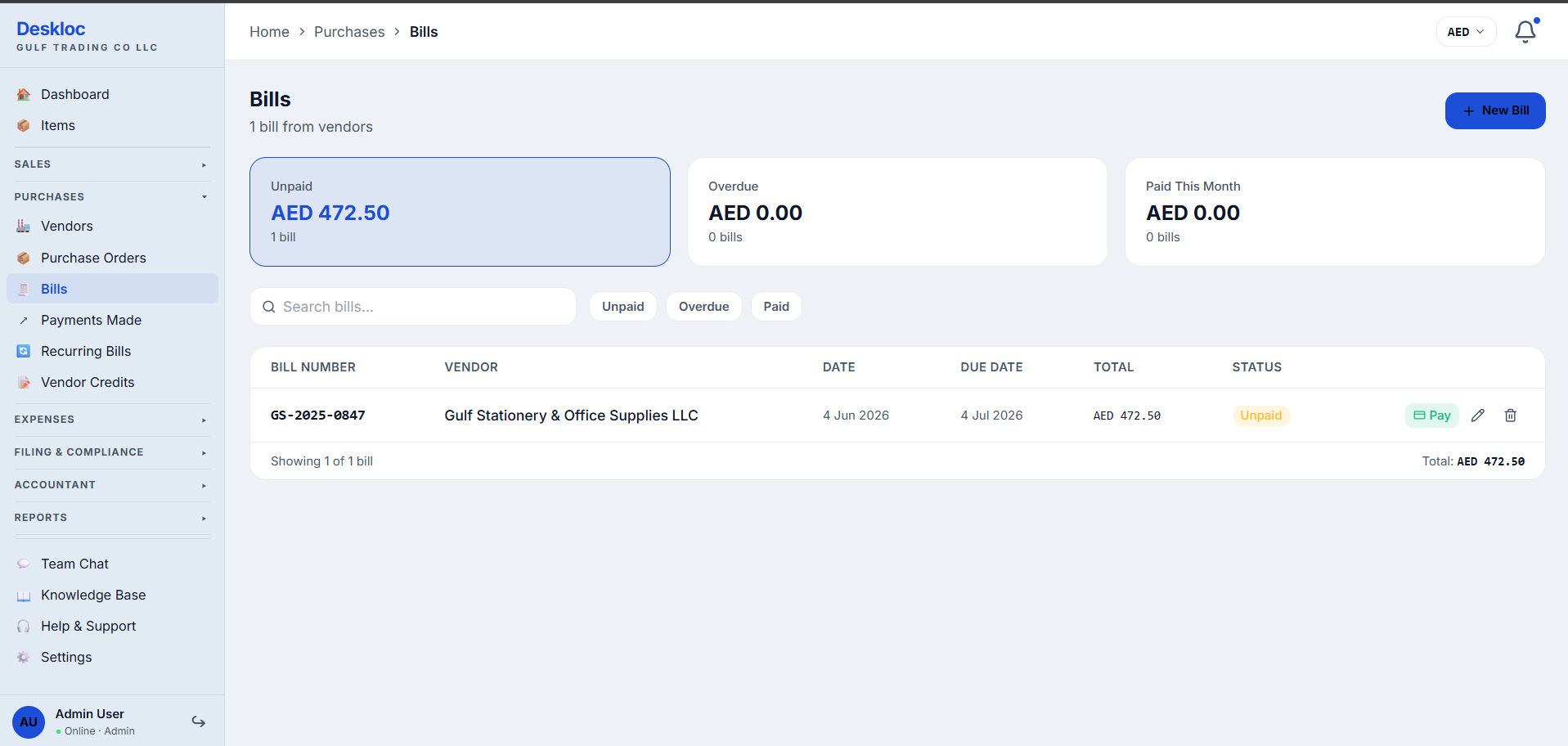
Click + New Bill (top-right, or the centre button if your list is empty).
Step 2: Enter the bill details
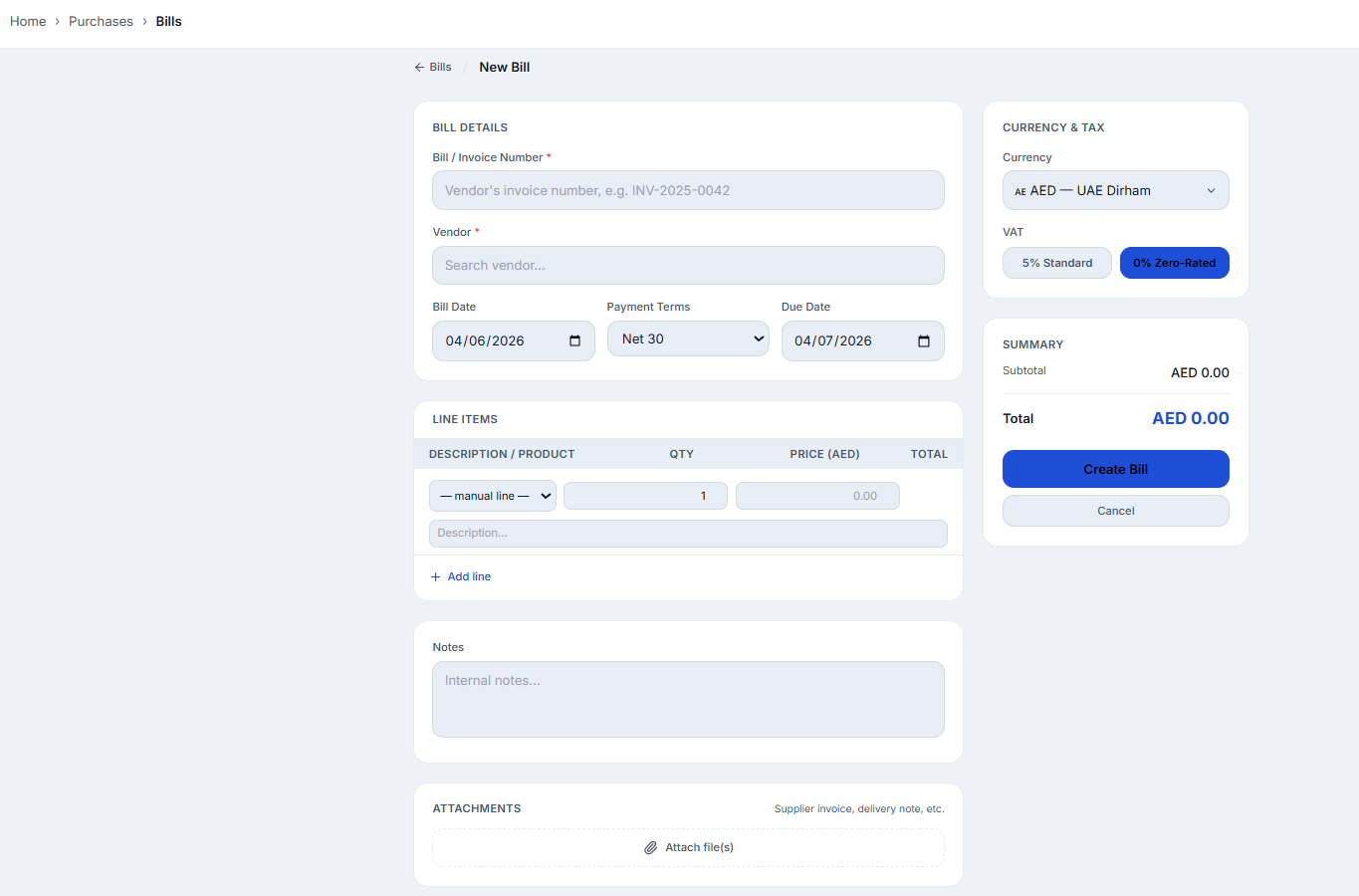
Bill / Invoice Number (required) — this is the number on the supplier's invoice (e.g. HIT-INV-2291), not a number you create. Deskloc Flow doesn't auto-generate it, because the whole point is to record their reference so you can match the bill to the physical invoice during an audit.
Vendor (required) — search and select from the vendors you've added. If the supplier isn't there yet, add them first (see "Add your first vendor"). Choosing the vendor links the bill to their profile, so it rolls up into their Total Bills / Outstanding Payables.
Bill Date — the invoice date shown on the supplier's document (not the date you're entering it).
Payment Terms — pick the terms the supplier gave you (Due on Receipt, Net 15, Net 30, etc.). Deskloc Flow auto-calculates the Due Date from the bill date and terms. You can override the due date if needed.
Step 3: Add the line items and VAT
In the Line Items section, add what you were billed for. For each line you can pick a saved item from your catalogue or choose — manual line — to type a free-text description, then enter quantity and unit price.
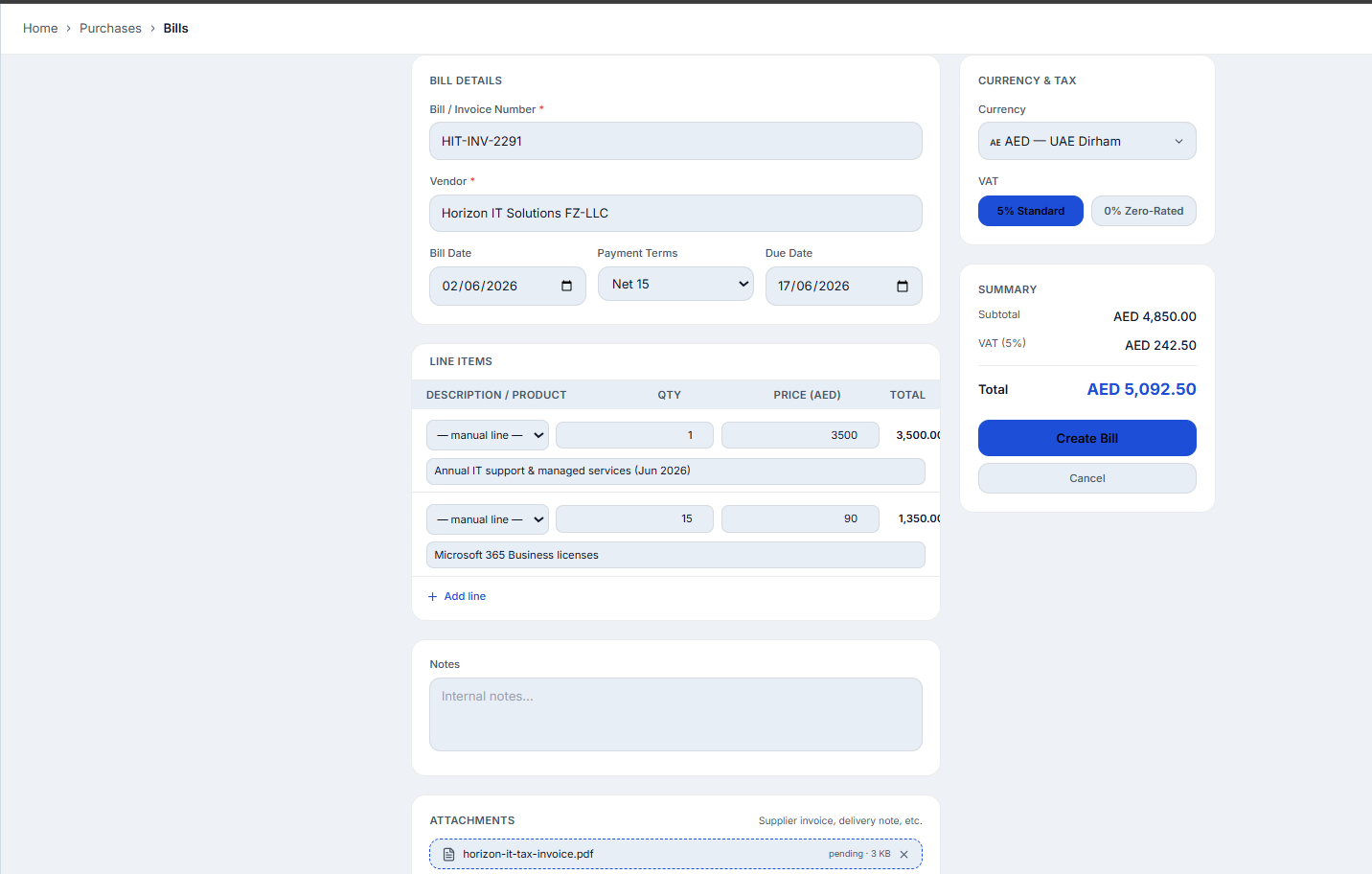
In the Currency & Tax card, set the VAT rate to match the supplier's invoice:
- 5% Standard — the normal UAE VAT rate. The VAT shown here is your recoverable input VAT (assuming a valid tax invoice from a registered supplier).
- 0% Zero-Rated — for zero-rated supplies (certain exports, specific goods/services).
The Summary card computes Subtotal, VAT, and Total live as you add lines. For multi-currency bills, change the Currency and Deskloc Flow fetches the exchange rate so the AED equivalent is recorded for your books.
Crucial accuracy point: the VAT you enter here is what flows into your input VAT on the VAT 201. Enter it as it appears on the supplier's invoice — don't add VAT to a supplier who didn't charge it, and don't claim VAT without a valid tax invoice behind it.
Step 4: Attach the supplier's tax invoice
Scroll to the Attachments card and click Attach file(s). Upload the supplier's actual tax invoice (PDF or image). You can attach more than one document — the invoice, a delivery note, the LPO confirmation, correspondence.
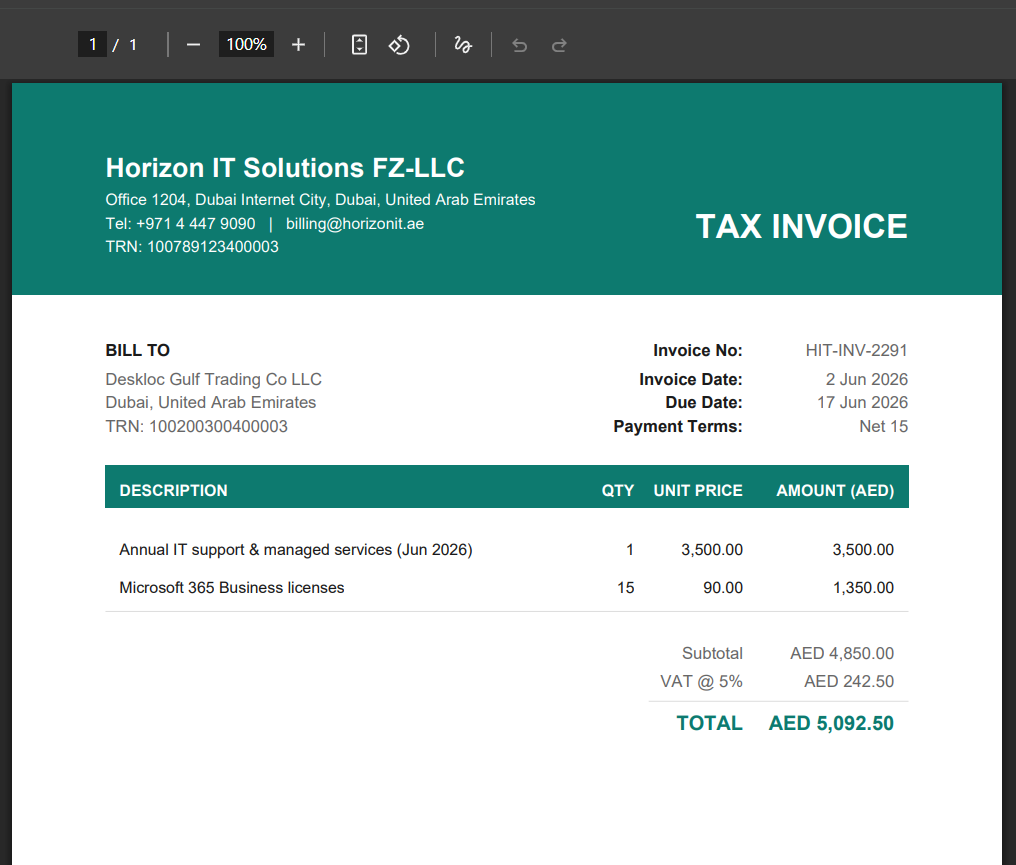
This step matters more than it looks. To recover input VAT, UAE law requires you to hold a valid tax invoice from the supplier. Attaching it to the bill means the evidence lives with the transaction — so when you (or your accountant, or the FTA) look at this bill months later, the supporting document is right there, not in a folder somewhere. On a new bill the files upload when you click Create Bill; on an existing bill they upload immediately.
Step 5: Save the bill
Click Create Bill. Deskloc Flow saves it and returns you to the Bills list, where the new bill appears with an Unpaid status.
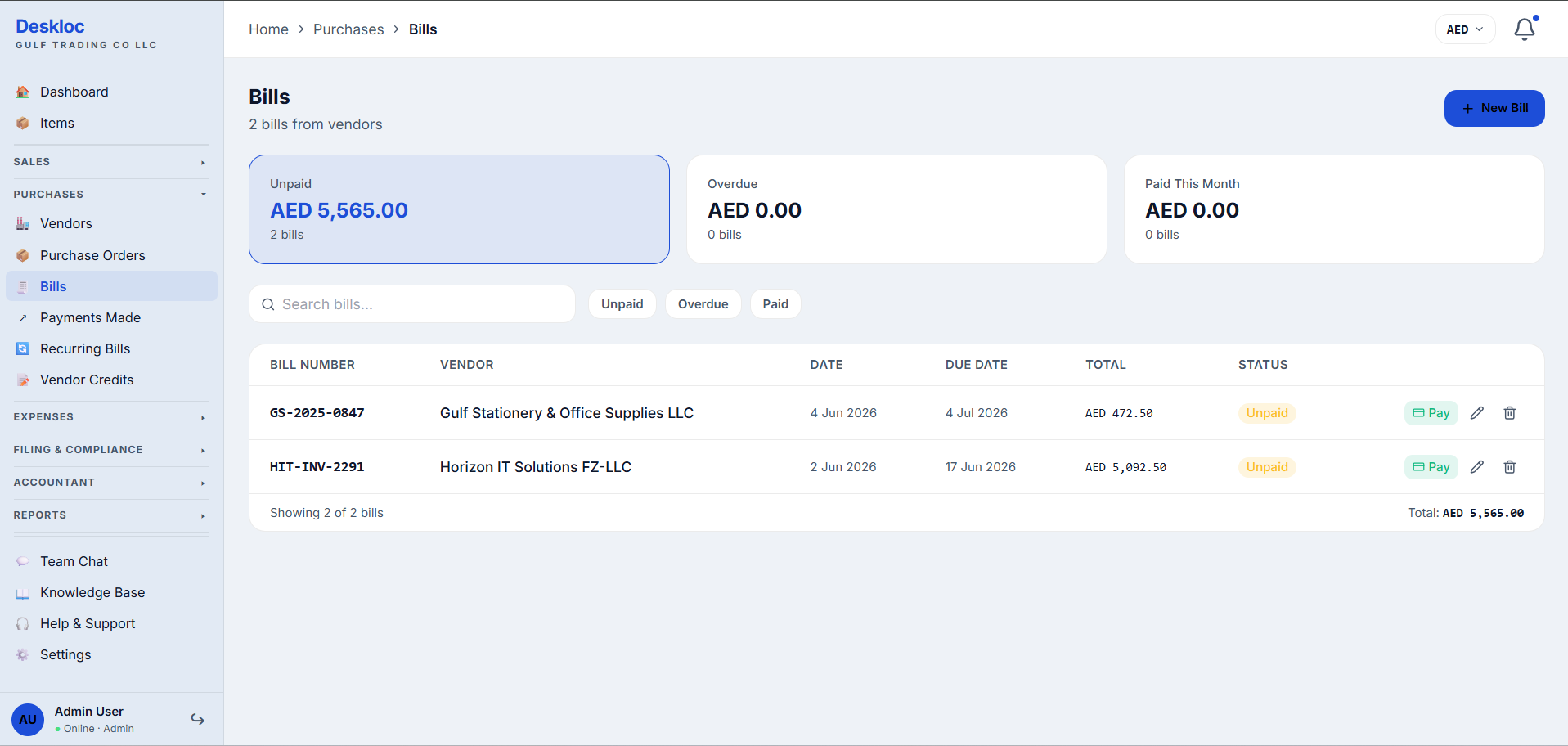
The bill now counts toward your payables, its input VAT is captured for the VAT return, and it stays Unpaid until you record a payment against it (the Pay button on the row, covered in its own article).
Common mistakes
Using your own number instead of the supplier's. The Bill / Invoice Number must be the supplier's reference. It's how you match the recorded bill to the physical invoice — entering your own sequence breaks that audit trail.
Claiming input VAT without attaching the tax invoice. If you record 5% VAT but don't hold a valid tax invoice from a registered supplier, that input VAT isn't recoverable, and the FTA can disallow it on audit. Attach the invoice as you go — it's the evidence.
Recording VAT the supplier didn't charge. Only enter VAT that actually appears on the supplier's invoice. A non-registered supplier can't charge VAT, so there's nothing to reclaim — set the line to 0% (or check whether reverse-charge applies for overseas suppliers).
Putting the wrong date. Use the supplier's invoice date as the Bill Date, not today's date. The bill date drives the due date and the VAT period the input VAT falls into.
Forgetting overseas suppliers may be reverse-charge. A bill from a foreign supplier for imported services often falls under the reverse-charge mechanism, which is handled differently on the VAT 201 — don't simply treat it as a standard 5% local purchase.
How Deskloc Flow handles this
Recording a bill is the purchase-side mirror of issuing a tax invoice — same line-items-and-VAT engine, opposite direction of the ledger. The deliberate differences are what make it right for UAE purchasing: you record the supplier's invoice number (audit trail), you capture input VAT (recoverable, not payable), there's no "send" step (you're recording a received document, not issuing one), and you can attach the supplier's tax invoice directly to the bill so the VAT evidence travels with the transaction.
Everything connects: the bill links to the vendor (feeding their payables position), the input VAT flows to your VAT return, the attachment substantiates the claim, and the Unpaid status feeds your cash-flow and payables ageing until you record payment.
Ready to track what you owe? Try Deskloc Flow free →
Note for accountants. The input VAT captured on each bill must be supported by a valid tax invoice from a registered supplier — Deskloc Flow's per-bill attachments let you store that evidence against the transaction, which streamlines both review and FTA audit response. Reconcile the supplier TRN on the attached invoice against the vendor record. For overseas suppliers, confirm whether the reverse-charge mechanism applies (imported services/goods) rather than recording a standard input-VAT line, as the VAT 201 treatment differs (Box 3 / Box 10 vs Box 9). The Bill Date determines the tax period in which the input VAT is claimed.
FAQ
What's the difference between a bill and an expense? A bill is money you owe a vendor on their invoice, with payment terms and a due date — it sits in accounts payable until paid. An expense is typically a cost you've already paid (a receipt). Bills track what you owe; expenses record what you've spent. (Recording expenses is covered in its own article.)
Whose invoice number do I enter? The supplier's — the number printed on the invoice they sent you. Deskloc Flow doesn't generate it, so you can match the bill to the physical document.
Can I attach more than one document to a bill? Yes. Attach the tax invoice, a delivery note, the purchase-order confirmation — as many as you need. Each can be downloaded later from the bill.
Do I have to attach the supplier's invoice? It's not enforced by the form, but for any bill where you're recovering input VAT you should — a valid tax invoice is what makes the VAT recoverable, and keeping it on the bill is the cleanest audit trail.
How do I record paying the bill? Use the Pay button on the bill's row in the Bills list, or open the bill. The bill moves to Paid and the payment appears under Payments Made.
Can I record a bill in another currency? Yes. Change the Currency in the Currency & Tax card; Deskloc Flow fetches the exchange rate and records the AED equivalent for your books and VAT return.
Last reviewed: 4 June 2026 by the Deskloc Flow team.