You can add a vendor to Deskloc Flow from Purchases → Vendors → + New Vendor. Enter the supplier's company name, their Tax Registration Number (TRN) if they have one, contact details, address, and country — then save. The vendor is ready to bill against immediately, and their profile starts tracking everything you're billed and everything you pay them.
This article walks through the full flow for UAE businesses, including why the vendor's TRN matters for recovering input VAT on your purchases, and why payment terms, currency, and opening balances aren't on the vendor record (they're set per-bill, which is the right answer for UAE purchasing).
TL;DR
- Purchases → Vendors → + New Vendor → fill the form → Save
- Required field: Vendor / Company Name. Everything else is optional but recommended.
- TRN is the supplier's UAE 15-digit Tax Registration Number — record it to recover input VAT on their bills
- After saving, the vendor profile tracks Total Bills, Total Paid, and Outstanding Payables automatically
- Vendors live on the Purchases side — the mirror of Customers on the Sales side
Step 1: Open the Vendors page
In the sidebar, expand Purchases and click Vendors. This is your supplier directory — every vendor you've added, searchable by name, email, TRN, or contact person.
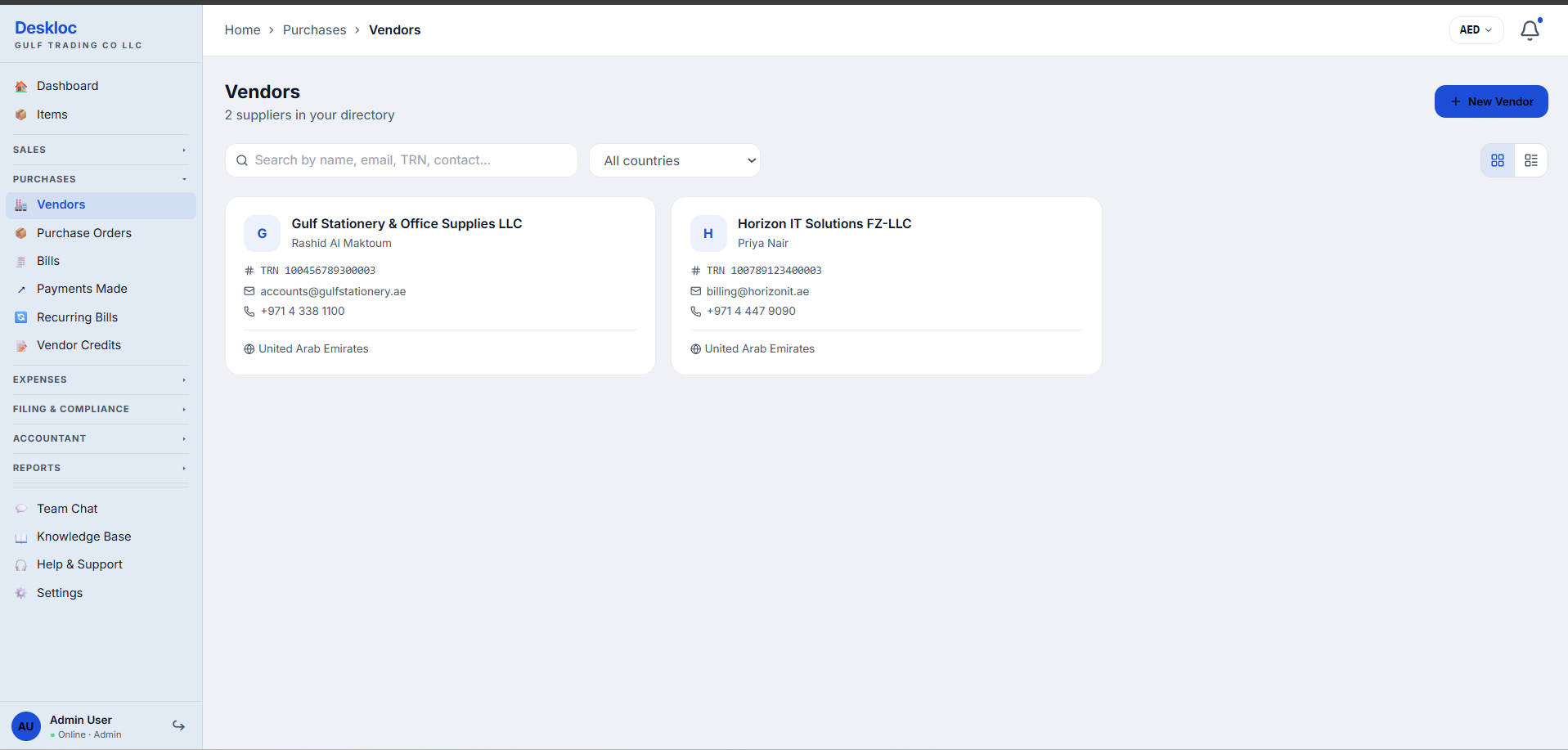
If this is your first vendor, you'll see an empty state inviting you to add your first supplier. Otherwise you'll see your existing vendors as cards, each showing the company name, contact person, TRN, email, phone, and country.
Step 2: Open the New Vendor form
Click + New Vendor (top-right, or the button in the centre of the empty state). The New Vendor form opens.
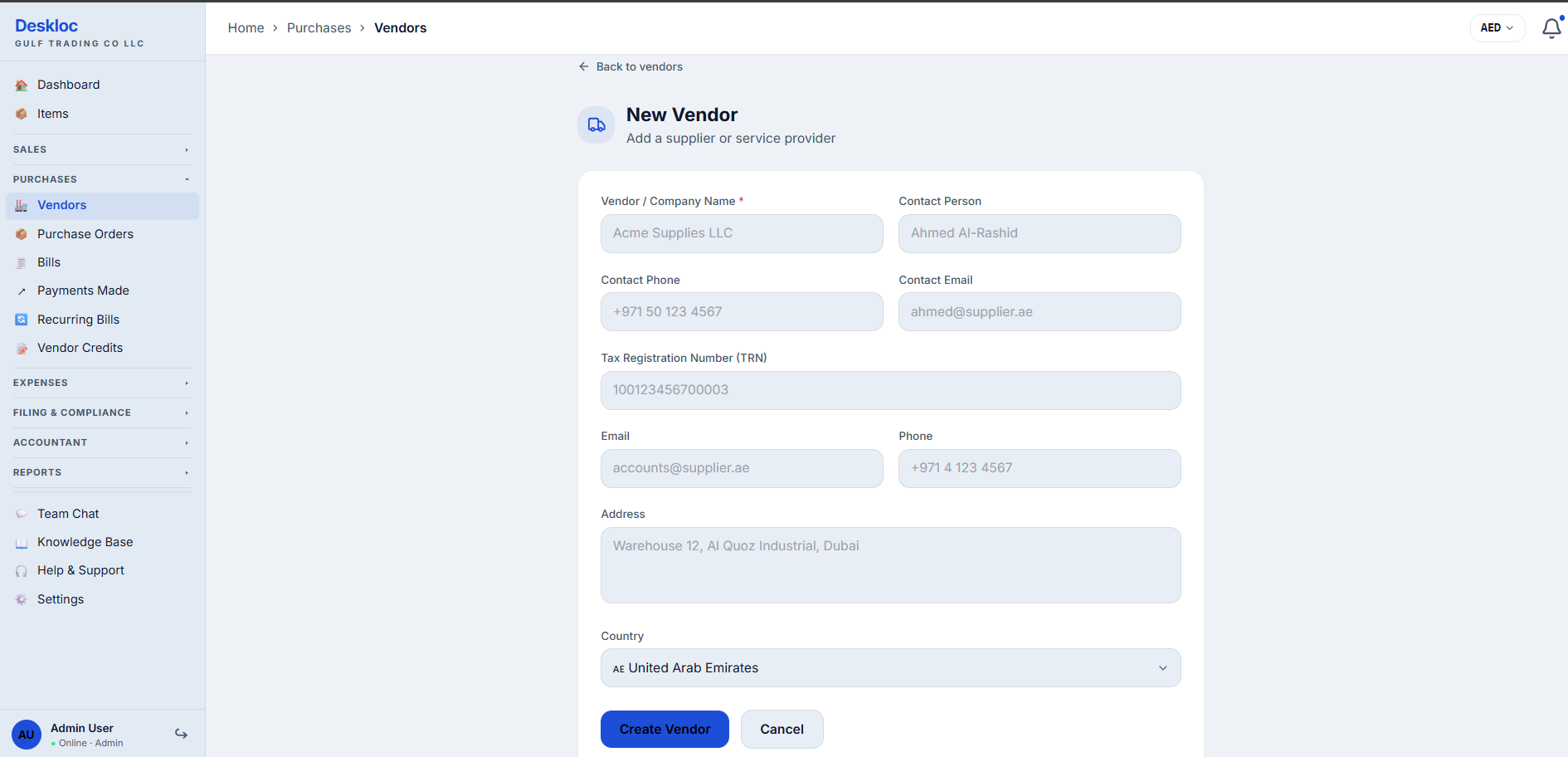
The form has nine fields, grouped into the company, a primary contact person, the tax registration number, general email/phone, and the address. Only the company name is required — but the more you fill in now, the less you'll chase later.
Step 3: Fill in the vendor details
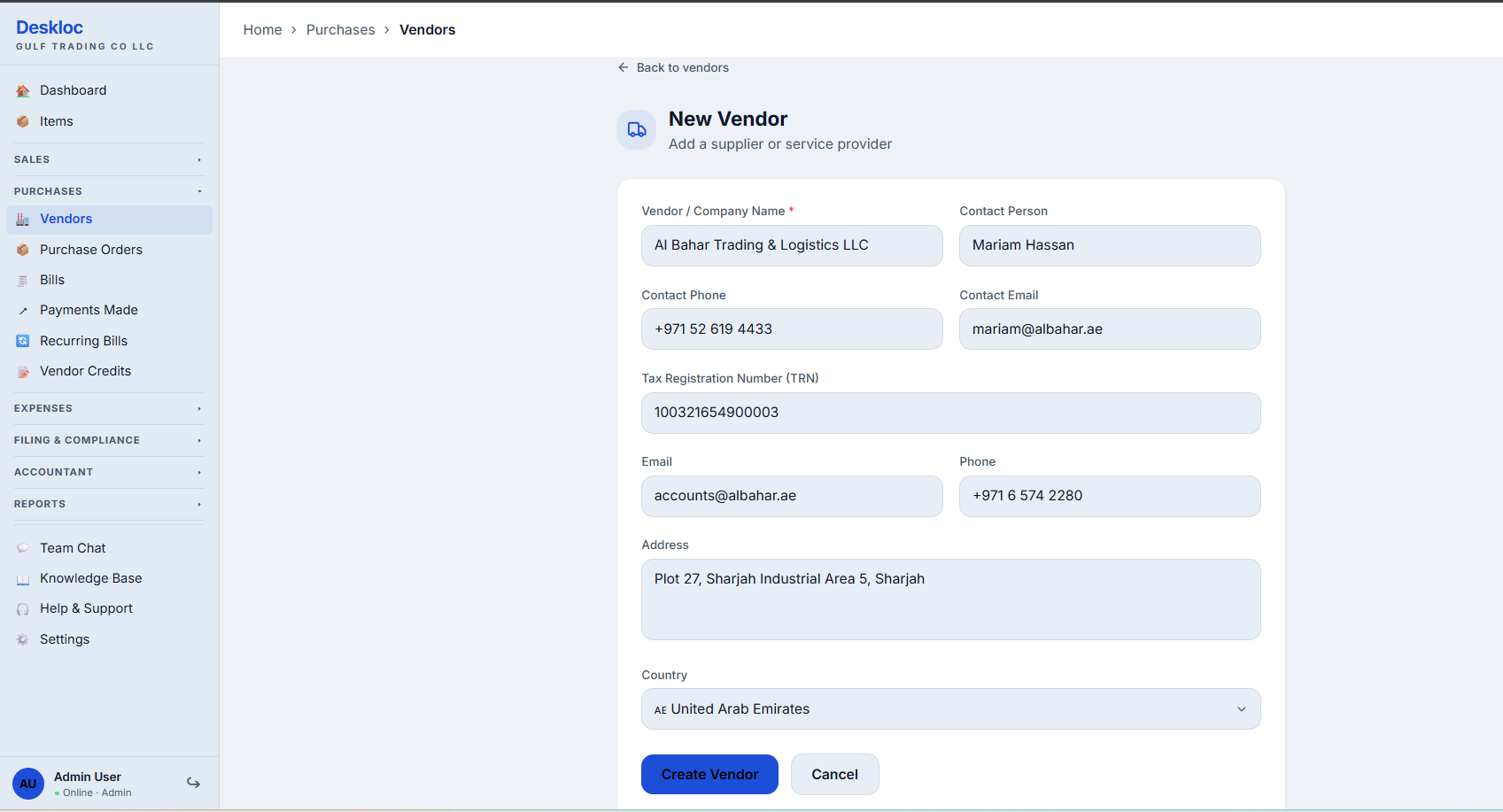
Here's what each field is for:
- Vendor / Company Name (required) — the supplier's legal trading name, e.g. Al Bahar Trading & Logistics LLC. This is what appears on bills, purchase orders, and your Payments Made records.
- Contact Person / Contact Phone / Contact Email — your day-to-day point of contact at the supplier (the person you actually call about a delivery or a disputed invoice). Separate from the company's general details below.
- Tax Registration Number (TRN) — the supplier's 15-digit UAE TRN. This is the field that matters most for compliance. To recover input VAT on a purchase, you need a valid tax invoice from a VAT-registered supplier showing their TRN. Recording it here means it's on file when you enter their bills — and it's your first check that the supplier is genuinely VAT-registered (only registered businesses can charge you VAT you can reclaim).
- Email / Phone — the supplier's general accounts or office contact (e.g. accounts@supplier.ae), distinct from your named contact person.
- Address — the supplier's physical address. Useful for purchase orders and for your own records.
- Country — defaults to United Arab Emirates. Change it for overseas suppliers (relevant later for reverse-charge VAT on imported services and goods).
Click Create Vendor. You'll land directly on the new vendor's profile page.
Step 4: Your vendor's profile
After saving, Deskloc Flow takes you straight to the vendor's detail page — the hub for everything you do with this supplier.
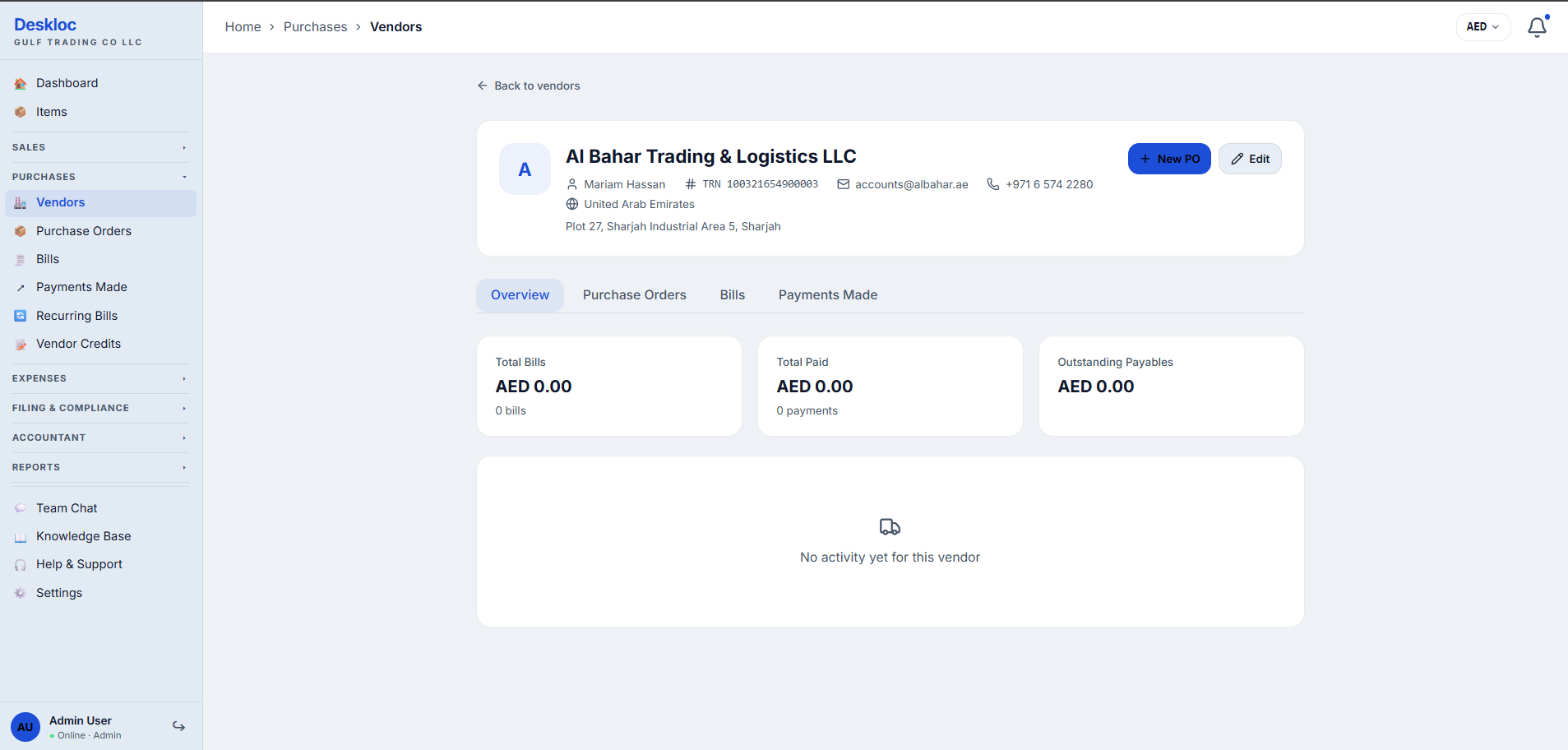
The header shows the vendor's name, contact person, TRN, email, phone, country, and address at a glance, plus Edit and + New PO buttons. Below that, three stat cards summarise your financial relationship:
- Total Bills — everything you've been billed by this vendor (excluding drafts and voided bills)
- Total Paid — what you've actually paid them
- Outstanding Payables — what you still owe
Four tabs organise the detail: Overview, Purchase Orders, Bills, and Payments Made. For a brand-new vendor everything reads AED 0.00 with "No activity yet for this vendor" — these fill in automatically as you raise purchase orders, enter bills, and record payments against them.
Step 5: Editing a vendor
Need to fix a typo or add a TRN you didn't have at first? Open the vendor and click Edit. A side panel opens with the same fields as the create form, pre-filled with the existing data.
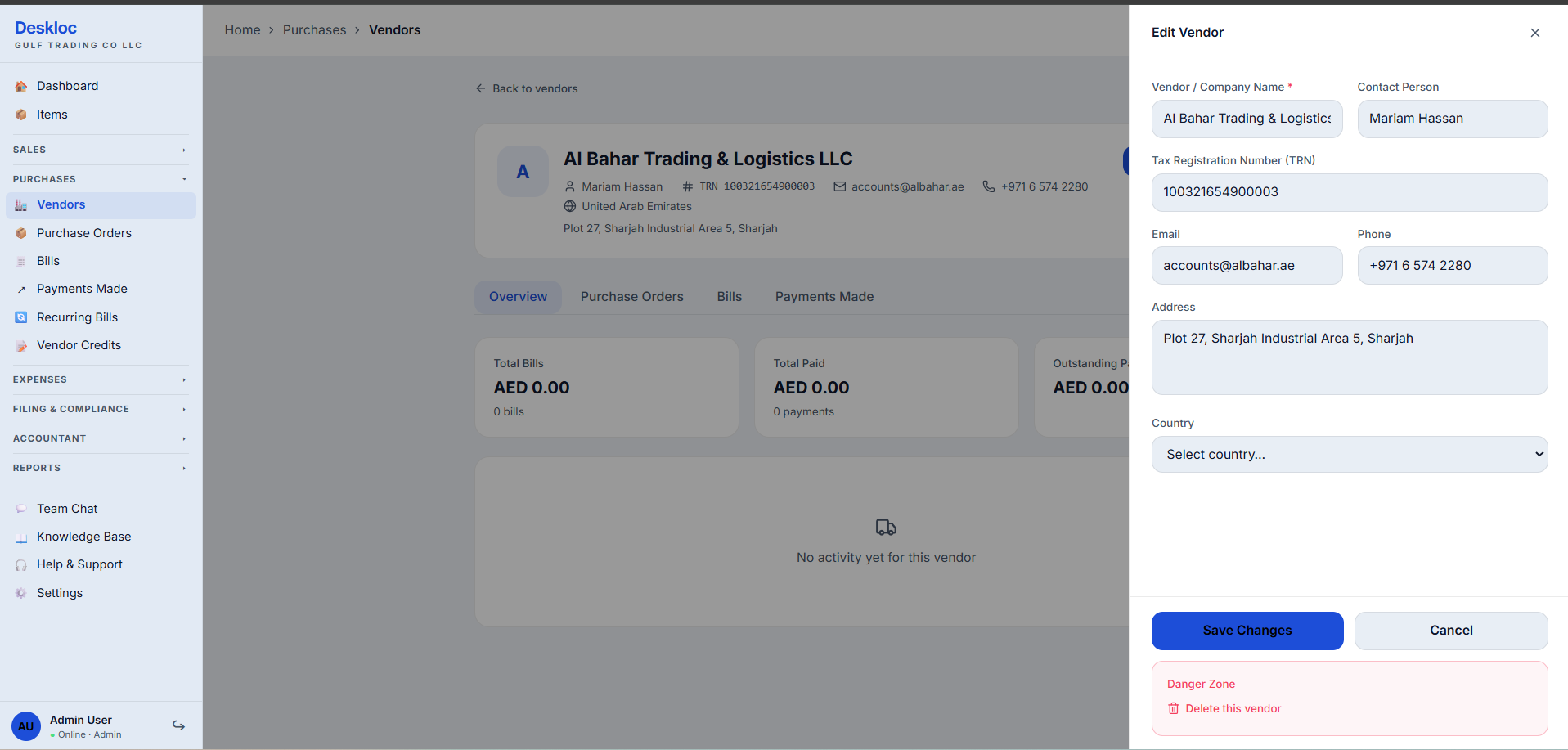
Make your changes and click Save Changes. The panel also has a Danger Zone with Delete this vendor — use this only for vendors added in error, since deleting removes the supplier from your directory.
Why payment terms, currency, and opening balances aren't on the vendor record
If you've used other accounting tools, you might expect to set default payment terms (Net 30, etc.), a default currency, or an opening balance when you create a vendor. Deskloc Flow deliberately keeps these off the vendor record, for the same reason it does on the customer side:
- Payment terms belong on the bill. The same supplier might give you Net 30 on one purchase order and cash-on-delivery on another. Locking a single term to the vendor record forces you to override it constantly. Set terms per-bill, where they actually apply.
- Currency belongs on the bill. A supplier might invoice you in AED for local supply and USD for imports. The currency is a property of the transaction, not the relationship.
- Opening balances are handled through your accounting setup, not the vendor contact form — so a contact record stays a contact record.
The result is a clean vendor record that's purely about who the supplier is, with the financial specifics living where they belong: on each bill.
Common mistakes
Skipping the TRN on a VAT-registered supplier. This is the costly one. If you don't record (and later capture on the bill) a valid supplier TRN, you can't substantiate the input VAT you're reclaiming — and the FTA can disallow it on audit. Always get the TRN for any supplier charging you VAT.
Recording a TRN for a supplier that isn't actually registered. The reverse error. Only VAT-registered businesses can charge VAT. If a small supplier puts a "TRN" on an invoice that doesn't validate, you can't reclaim that VAT. When in doubt, verify the TRN on the FTA's TRN verification tool before relying on it.
Treating the contact person and the company as the same thing. The Contact Person fields are for your named human contact; the general Email / Phone are the company's accounts line. Filling only one set means you lose either the relationship contact or the official channel.
Leaving Country as UAE for an overseas supplier. For foreign suppliers, set the correct country — it flags transactions that may fall under the reverse-charge mechanism for imported goods and services, which you'll handle differently on the VAT return.
How Deskloc Flow handles this
Vendors are the mirror image of customers: same clean contact-first record, same profile that tracks the financial relationship automatically, same decision to keep transaction-level details (terms, currency) on the documents rather than the contact.
What's specific to the purchasing side is the emphasis on the supplier's TRN. On the sales side, your own TRN drives the invoices you issue. On the purchasing side, your supplier's TRN is what unlocks input VAT recovery — turning their bills into VAT you can reclaim on your VAT 201. Capturing it at the vendor stage means it's ready every time you enter one of their bills, instead of being chased down at filing time.
Everything flows from here: add the vendor, raise purchase orders, enter their bills, and record payments — each step building the Total Bills / Total Paid / Outstanding Payables picture on the vendor's profile, and feeding your VAT and payables reporting.
Ready to add your suppliers? Try Deskloc Flow free →
Note for accountants. The vendor TRN captured here is the control point for input VAT recovery — reconcile it against the TRN printed on each tax invoice you process, since the recoverable amount must be supported by a valid tax invoice from a registered supplier. For overseas vendors, set the country correctly so import transactions can be identified for reverse-charge treatment (Box 3 / Box 10 on the VAT 201). Note that Deskloc Flow's vendor record is a contact entity only; opening balances and payment terms are handled at the transaction level, so a vendor's payables position is always derived from its actual bills and payments rather than a static field.
FAQ
Is the TRN required to add a vendor? No — only the company name is required. But for any VAT-registered supplier, record the TRN: it's what lets you recover input VAT on their bills. Add it later via Edit if you don't have it at first.
What's the difference between the Contact Person fields and the general Email / Phone? The Contact Person (with its own phone and email) is your named human contact at the supplier. The general Email / Phone are the company's official accounts/office channels. Fill both where you can.
Can I set default payment terms or a currency for a vendor? Not on the vendor record — these are set per-bill, because the same supplier often varies terms and currency between transactions. This keeps the vendor record a clean contact entity.
How do I record what I owe a vendor? Enter their bills (Purchases → Bills) and record payments against them (Payments Made). The vendor's profile then shows Total Bills, Total Paid, and Outstanding Payables automatically. Recording bills and payments is covered in its own article.
Can I add an overseas (non-UAE) supplier? Yes — just set the correct country. This matters for VAT: purchases from foreign suppliers may fall under the reverse-charge mechanism, which is handled differently on your VAT return.
How do I delete a vendor I added by mistake? Open the vendor, click Edit, and use Delete this vendor in the Danger Zone. Use it only for genuine errors — deleting removes the supplier from your directory.
Last reviewed: 4 June 2026 by the Deskloc Flow team.