You can invite teammates to your Deskloc Flow account from Settings → Users. Click Invite User, enter their email, choose one of four roles — Admin, Sales, Accountant, or Member — and click Send Invite. They get an email with a magic link that signs them in directly, no password required. Most invites take under 30 seconds to send and arrive within a minute.
This article covers the full flow for UAE businesses, including which role to choose for your bookkeeper, your sales staff, and your external accountant — a decision that matters more than it looks because it controls who can see your VAT data and who can edit your books.
TL;DR
- Settings → Users → Invite User → enter email → pick role → Send Invite
- Four roles available: Admin (full access), Sales (sales & invoicing only), Accountant (books, bills, VAT), Member (general view & record)
- Invitees receive an email from
noreply@mail.app.supabase.iowith a one-click sign-in link - Link expires in 1 hour — if it expires, just re-send the invite
- Only Admins can invite, change roles, or remove users
Step 1: Open the Users settings
From any page in Deskloc Flow, click Settings in the left sidebar, then click the Users tab at the top. You'll see your current team listed under Team Members, each row showing their email, role badge, and (if you're an Admin) controls to change their role or remove them.
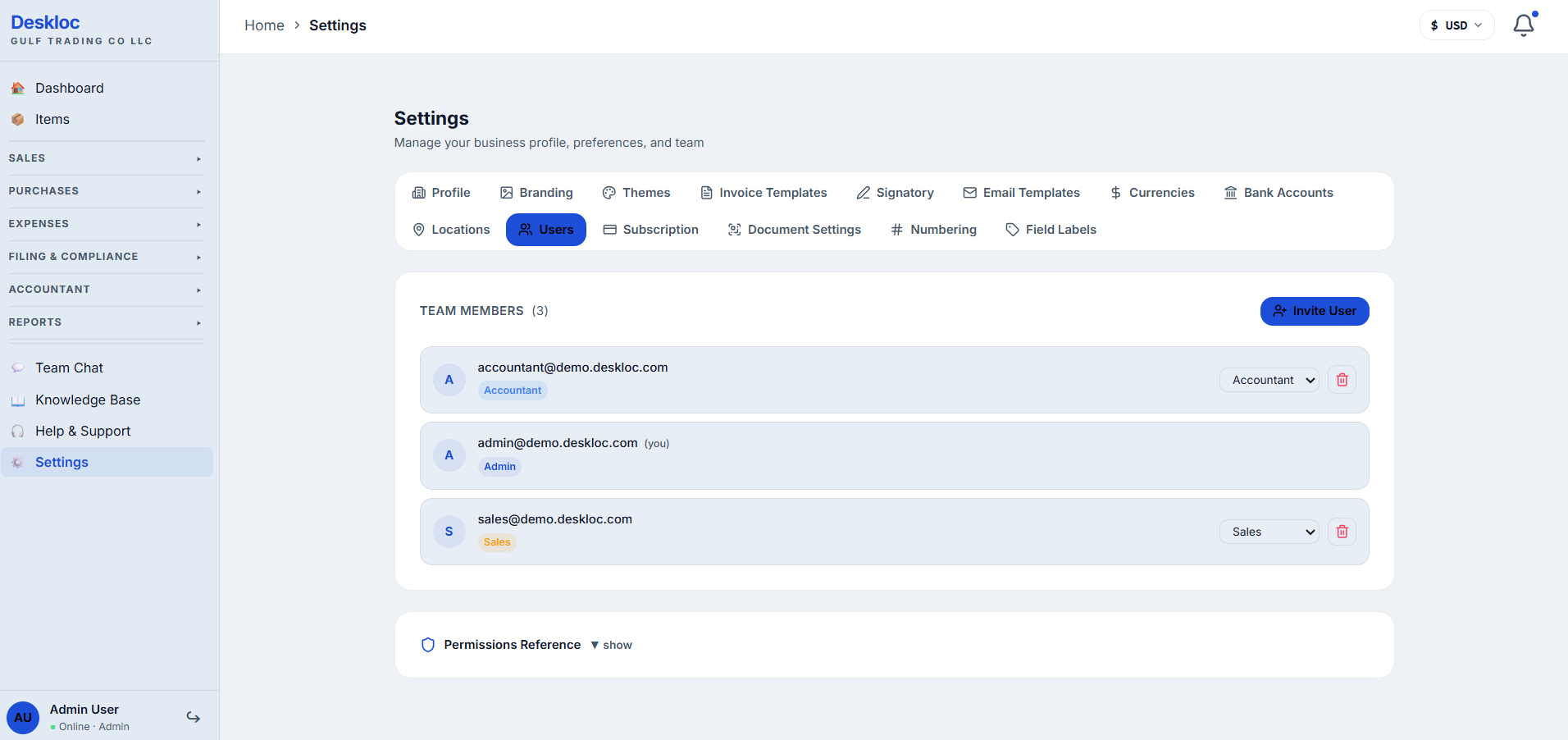
If you don't see an Invite User button in the top-right of the team list, you're not signed in as an Admin. Only Admins can invite, change roles, or remove users. Ask your account owner to either invite the person directly or upgrade your role.
Step 2: Open the invite form
Click the blue Invite User button in the top-right of the Team Members card. The invite form expands inline above the team list, showing two fields: Email Address and Role.
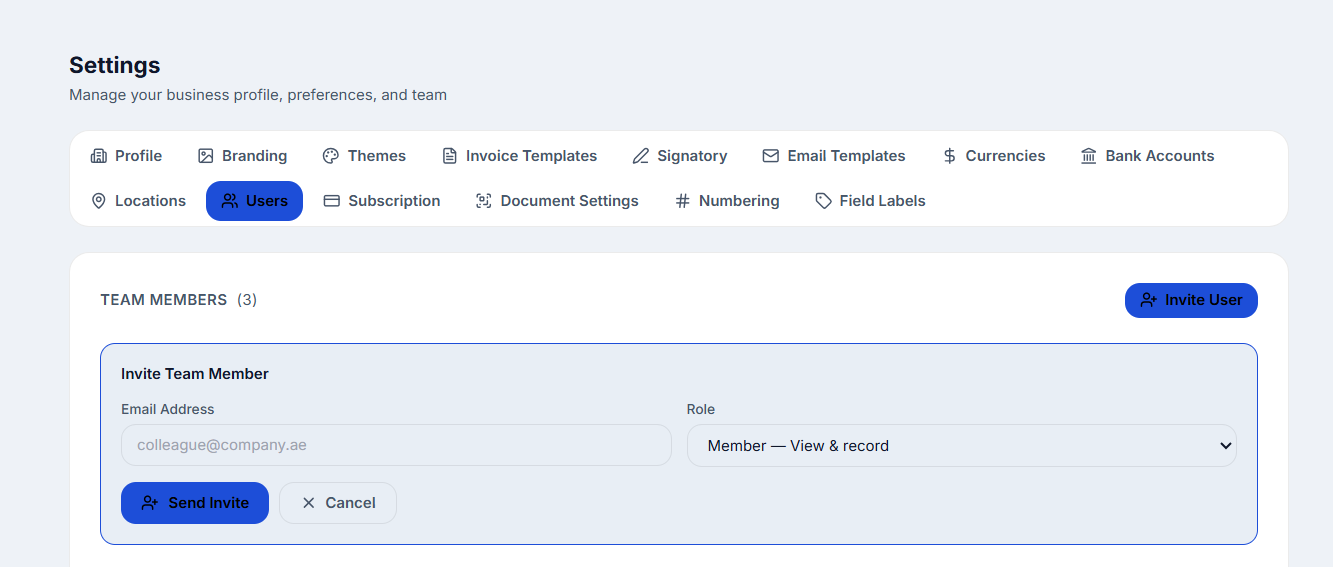
Enter your teammate's email address. Use the same email they'll use to sign in — UAE business addresses are common (yourname@company.ae), but personal Gmail or Outlook addresses work too.
Step 3: Choose the right role
Click the Role dropdown to see all four available roles, each with a short description of what that role can do.
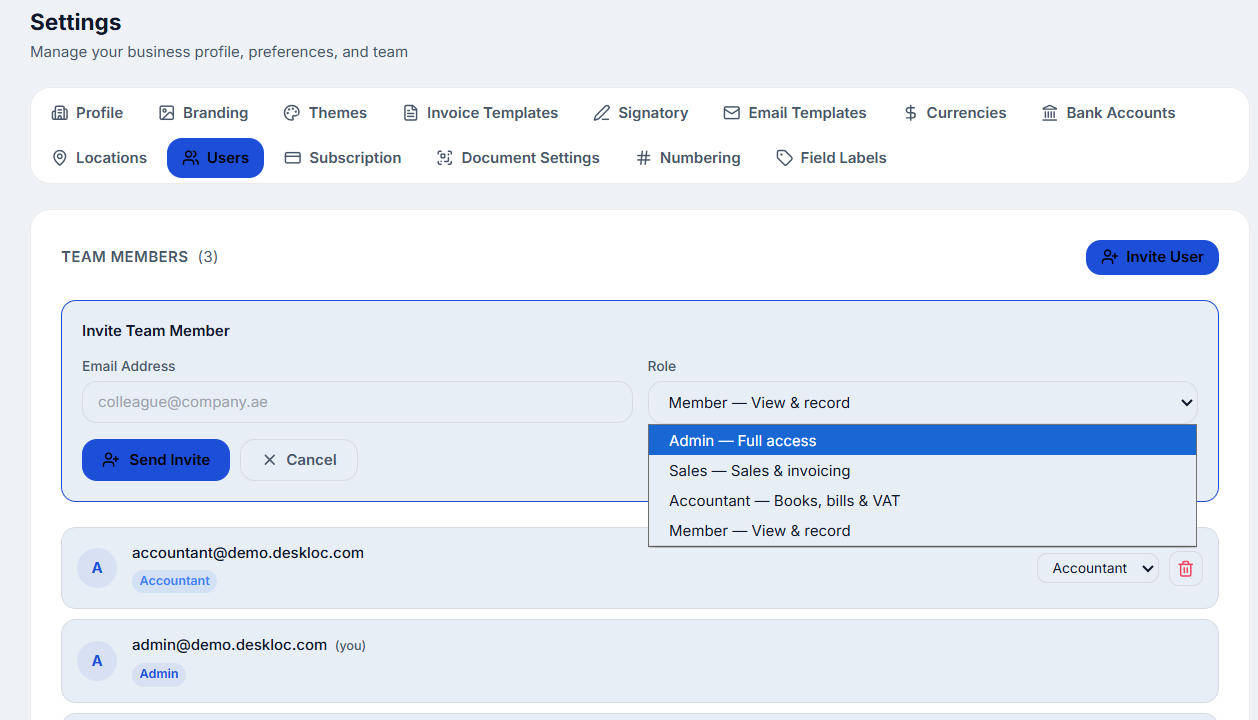
Here's how to decide:
- Admin — Full access. They can do everything you can: invoice, expenses, bills, VAT returns, reports, settings, and inviting more users. Reserve this for co-founders or people you trust with company finances.
- Sales — Sales & invoicing. They see and create invoices, quotations, customers, and payments received. They cannot see your bills, expenses, VAT filings, or financial reports beyond their own sales numbers. Right for sales staff or account managers who shouldn't see overall company finances.
- Accountant — Books, bills & VAT. They see invoices, quotations, expenses, bills, chart of accounts, VAT/tax filing, and all reports. They cannot change settings or invite users. Right for in-house bookkeepers, your external accountant, or your tax consultant.
- Member — View & record. A general staff role with access to invoices, quotations, expenses, bills, and reports — but not chart of accounts, VAT filing, settings, or user management. Right for operations staff who need to record transactions but shouldn't touch the books.
If you're not sure, Member is the safest starting point. You can change someone's role at any time from the team list.
Step 4: Send the invite
Once you've entered the email and picked a role, click Send Invite. The button shows a spinner while sending, then turns green and reads Invite Sent! when it's done.
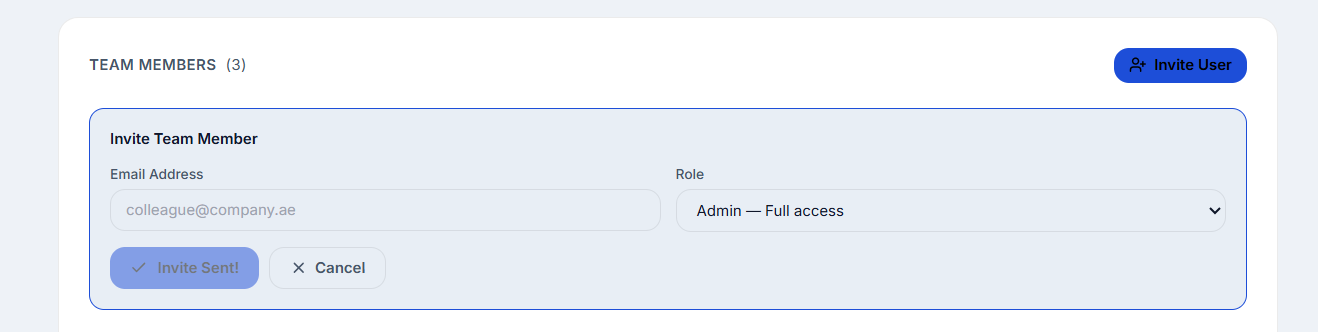
The form clears itself after about 2 seconds, ready for the next invite. The new teammate appears in your team list as soon as they sign in for the first time.
What your teammate receives
Your invitee gets an email from noreply@mail.app.supabase.io with the subject line including "Deskloc Flow" and a button or link labeled something like "Sign in to Deskloc Flow". Clicking the link signs them in directly — they don't need to create a password. On first sign-in, they're dropped straight into the dashboard with the permissions for the role you assigned.
The link is a one-time magic link that expires in 1 hour. If your teammate doesn't click it in time, just go back to Settings → Users, find them in the list (they'll appear after the first attempt), and re-send the invite. Or invite them again from scratch — both work.
Permissions reference
Here's exactly what each role can and cannot access:
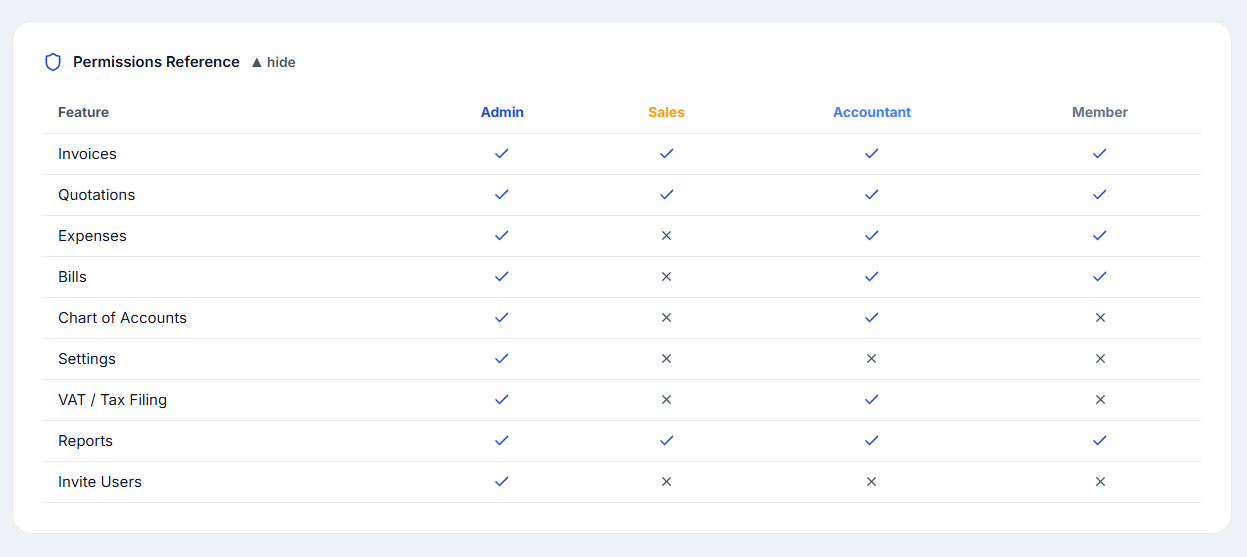
This chart is visible in your own Deskloc Flow account too — scroll to the bottom of the Users tab and click Permissions Reference to expand it. It's the source of truth for what each role sees in the sidebar.
A few details worth knowing:
- Reports access for the Sales role is filtered — they see sales-related reports (sales summary, by customer, by item, by salesperson, AI insights) but not financial reports like profit & loss or the balance sheet.
- VAT / Tax Filing is accountant-and-admin only. Members and Sales cannot view, prepare, or submit VAT returns.
- Settings (including this Users page, branding, invoice templates, currencies, and bank accounts) is Admin-only. Other roles cannot make configuration changes.
Changing a teammate's role
To change someone's role after they've joined, find them in the team list and use the dropdown next to their name. Pick a new role and the change applies immediately — no email is sent and no sign-out is required, though they may need to refresh the page to see new menu items appear.
You cannot change your own role from this page (this prevents you from accidentally locking yourself out as Admin). If you need to step down from Admin, invite another Admin first, then ask them to change your role.
Removing a teammate
To remove someone, click the red trash icon next to their role dropdown. They lose access immediately. Their historical actions (invoices they created, expenses they recorded) stay in the system tied to their email — removal does not delete data.
Common mistakes
Inviting your external accountant as Admin. Tempting, but unnecessary. The Accountant role gives them everything they need to do your books and file VAT, without access to settings or the ability to invite more users. Use Accountant unless they specifically need to change branding or invoice templates.
Inviting sales staff as Member instead of Sales. Member gives access to bills and expenses — most sales staff don't need to see what the business is paying out. The Sales role is more focused and protects vendor pricing and overhead data from being visible in the sales team's view.
Forgetting to re-invite after the magic link expires. UAE working hours don't always match when invitees check email. If your teammate emails you saying "the link doesn't work," it's almost certainly expired (after 1 hour). Re-send from Settings → Users.
Using a personal email for a business role, then losing access. If someone leaves the company and they were invited with a personal email, they keep access until you remove them. Remove departing teammates from Settings → Users as part of your offboarding checklist.
Assuming role changes notify the user. Changing someone from Member to Admin (or vice versa) is silent — they see new menu items the next time they refresh, but no email is sent. Tell them directly if you're upgrading or downgrading their access.
How Deskloc Flow handles this
The four-role system is designed around how UAE small businesses actually staff up: an owner-Admin, a sales person, an accountant (often external), and general staff. You don't need to design custom permission groups or worry about complex access matrices — pick the role that matches the person's job and you're done.
For UAE-specific compliance like VAT filing, the Accountant role is intentionally scoped to include VAT/Tax Filing and all financial reports. Your external accountant can prepare and file your VAT 201 return without you having to share Admin credentials — which would also give them access to change your bank accounts, branding, and invite settings.
Ready to bring your team into Deskloc Flow? Try Deskloc Flow free →
Note for accountants. If you're providing services to multiple UAE clients, ask each client to invite you with the Accountant role from their own Deskloc Flow account. You'll sign in with the same email and switch between client tenants from your account menu. You do not need separate logins per client, and you should not accept Admin role unless the client specifically needs you to manage their settings and other users — accepting Admin makes you responsible for actions outside the typical accountant scope. The principle of least privilege protects both sides.
FAQ
Can I invite someone outside the UAE? Yes. Deskloc Flow doesn't restrict invitees by country. The role permissions are the same regardless of where your teammate is located. The only UAE-specific behavior is in the data and compliance features themselves (VAT, Corporate Tax, FTA formats), which apply to your business setup, not to who's accessing the system.
How long does the invite link stay valid? The magic sign-in link expires 1 hour after being sent. If your teammate misses the window, re-send the invite from Settings → Users and they'll get a fresh link.
Can I undo a role change? Yes, instantly. Open the team member's role dropdown and pick the previous role. There's no confirmation step and no audit log entry sent by email, but the change applies the moment you select it.
Is there a limit on how many users I can invite? Subscription tier determines the cap. Check Settings → Subscription to see your current plan's user limit. Inviting beyond your cap will show an error before the email is sent.
What happens to invoices created by a user I remove? Nothing is deleted. Removed users lose access immediately, but the records they created (invoices, expenses, bills, payments) remain in your account with their email still attached as the creator. This is intentional for FTA audit trail requirements — UAE businesses must retain records of who created each accounting entry.
Can a Sales user see how much my company makes in profit? No. The Sales role's reports access is limited to sales-specific views (sales summary, sales by customer, sales by item, sales by salesperson). They cannot see profit & loss, balance sheet, cash flow, or other financial reports that would reveal company-wide margins and overhead.
Last reviewed: 21 May 2026 by the Deskloc Flow team.